What Is A Knowledge Management System?
Discover what a knowledge management system is, the main types, benefits and how to set one up for your team.

TL;DR
- A knowledge management system (KMS) is software that captures, organizes, and shares what your team knows, so people find answers fast.
- The main types are internal wikis, knowledge bases, document management systems, intranets, and learning platforms.
- Look for search, permissions, version history, real-time editing, and structure that grows as your content does.
- Start small: pick an owner, decide what goes in, set up a structure, choose a tool, move your docs, and review on a schedule.
It's your new hire's second week, and she's trying to file her first expense report. She asks where to find the expense policy and gets three different answers. Two are links to pages that no longer exist, and the third is a PDF a coworker saved to their desktop a while back, with a mileage rate that has since changed. She files the report with the old rate, finance sends it back, and a question that should've had one clear answer ends up eating most of her afternoon fixing it.
What's missing is one place where the current version of all documentation lives, and that's the problem a knowledge management system is built to solve.
What is a Knowledge Management System?
A knowledge management system (KMS) is software that helps a team capture, organize, and share what it knows in one searchable place. It replaces scattered files, chat threads, and personal notes with a single source of truth, so people can find accurate answers without asking around.
That usually means your team writes and keeps a set of pages current and organized so anyone can browse or search a topic by a keyword. The software takes care of storing pages, searching them, and controlling who sees what. Your team takes care of what goes in and keeping it accurate.
Knowledge Management vs. a Knowledge Management System
People often use these two terms as if they mean the same thing, but they don't. Knowledge management is the habits your team follows to write things down, share them, and keep them accurate.
A knowledge management system is the software those habits run on. Getting the software in place is the beginning. It's the habits your team grows that make the system work perfectly.
|
Category |
Knowledge management |
Knowledge management system |
|
What it is |
The habits your team builds |
The software |
|
Focus |
How knowledge is created, shared, and kept current |
Where it's stored and found |
|
Example |
Giving every page an owner |
A wiki with search and permissions |
Types Of Knowledge a KMS Holds
Not everything your team knows is written down, and some of it never fully will be. Knowledge falls into three kinds, and they're not all equally easy to write down.
|
Type |
What it is |
Example |
|
Explicit |
Written down and easy to share |
Policies, how-to guides |
|
Implicit |
Practical know-how nobody has documented yet |
Steps a senior teammate follows to resolve a ticket |
|
Tacit |
Judgment built from experience |
Knowing which client prefers a call to an email |
Explicit knowledge is the easy part, since it's already a document and just needs a home and regular updates. Implicit knowledge takes some effort, usually a teammate sitting down to write out steps they follow. Tacit knowledge, however, is the hardest to pin down because you can't fit years of judgment into one page. But keeping short write-ups after a project ends and notes on why a decision was made can capture a good part of it.
Types of Knowledge Management Systems
"Knowledge management system" is an umbrella term for several kinds of software, each built for a different job. Here's how they compare against each other.
|
Type |
Main purpose |
Who contributes |
Best for |
|
Internal wiki |
Shared team knowledge |
Anyone on the team |
How-tos, project docs |
|
Knowledge base |
Customer answers |
Support and content teams |
Help centers |
|
Document management |
Store and control files |
Admins, file owners |
Contracts, records |
|
Intranet |
Company news |
Comms and HR |
Announcements |
|
Learning platform |
Structured training |
Trainers |
Onboarding courses |
- Internal wiki
An internal wiki is a set of pages your whole team can write and edit. It's the most flexible type, because anyone can add a how-to or update a process as things change. Wikis work best for knowledge that changes often and comes from lots of people, like onboarding steps and team processes. Docmost falls into this category.
- Knowledge base
A knowledge base is usually customer-facing. Support and content teams write articles that answer common questions, and customers search them for help before they reach out to customer care representatives. Some companies run an internal knowledge base too, and the idea is the same: a small group writes the answers, and a much larger group reads them.
- Document management system
A document management system stores and controls files instead of pages. It's built for contracts, records, and signed forms, where the main job is keeping the right version of each file safe and making sure only the right people can open it.
- Intranet
An intranet is a private company website for news and announcements. Communications and HR teams usually run it, and most employees read it without contributing. That makes it a good fit for company-wide updates and a weaker fit for detailed how-to content that changes often.
- Learning platform
A learning platform delivers structured training, like onboarding courses. Trainers build the courses, and employees work through them in order. It's the right tool when you need people to complete a course, but it's not where most people go to look up a quick answer.
Many teams use more than one type at the same time. A common pairing is an internal wiki for team knowledge and a knowledge base for customers. If a wiki sounds like the right fit for you, compare wiki tools for growing teams to see your options.
Benefits of a knowledge management system
- Faster onboarding for new hires: New people can read how things work on their own schedule instead of waiting for someone to walk them through it.
- Fewer repeat questions to the same people: Once the answer lives on a page, your most experienced teammates stop answering the same question every week.
- Knowledge stays when people leave: A process that only lives in one person's head leaves with them, but writing it down keeps it with the team.
- Consistent answers across teams: When sales and support point to the same page, customers get the same answers from both, avoiding confusion.
- Less time hunting for files: Search replaces the routine of checking every drive and chat app before giving up and asking someone.
Key Features To Look For In A Knowledge Management System
Whatever type you choose, a handful of features decide whether your team uses the system or goes back to asking in chat.
|
Feature |
Why it matters |
What to check |
|
Search |
People find answers without knowing where they live |
Full-text search across all pages |
|
Permissions |
The right people see the right content |
Access by space, group, or page |
|
Version history |
You can see changes and restore earlier versions |
Browsable page history |
|
Real-time editing |
Teammates edit together without overwriting |
Multiple editors on one page |
|
Scalable structure |
Content stays findable as it grows |
Spaces by team, nested pages |
|
Import and export |
Content moves in and out |
Markdown and HTML support |
|
Single sign-on |
One login for everyone |
Which edition includes it |
If you only check one thing, check search. People won't use a system where they can't find anything, no matter how good the pages are. Permissions come next, especially if you'll store sensitive material like HR policies or client details. And if single sign-on matters to you, confirm which plan includes it before you choose, since some tools keep it for paid plans.
Cloud vs. Self-hosted Knowledge Management Systems
Once you know what you need, the next decision is where the system runs. A cloud tool runs on the vendor's infrastructure, and the vendor looks after it. A self-hosted tool runs on infrastructure you control.
|
Category |
Cloud |
Self-hosted |
|
Where your data lives |
The vendor's infrastructure |
Infrastructure you control |
|
Compliance posture |
You inherit the vendor's |
You define your own (access controls, encryption, retention) |
|
Upkeep |
The vendor handles it |
Your IT team handles hosting, backups, upgrades, and security patching |
Self-hosting changes three things. Your data never leaves infrastructure you control. You define your own compliance posture, including access controls, encryption, and retention, instead of inheriting a vendor's. And hosting, backups, upgrades, and security patching become your IT team's responsibility. If you don't have an IT team ready to take that on, a cloud tool is the simpler route.
How To Set Up a Knowledge Management System
Step 1: pick an owner
Choose one person who's accountable for the whole system. They won't write everything, but they'll make sure the structure holds up and nothing gets left unmaintained. Then give every page its own owner, usually whoever knows the topic best, so there's always someone responsible for keeping it accurate.
Step 2: decide what goes in
Start with the pages that answer the questions people ask most. Think about what new hires ask in their first few weeks and what your team keeps answering in chat. Those pages get used right away, which helps people build the habit of checking the system before they ask.
Step 3: set up your structure
Group content into spaces by team or department, so each group has a clear home for its pages. Inside each space, name pages the way people would search for them, like "Expense policy" instead of "Finance doc v2." Then nest related pages under a parent page so people can browse a topic from the top down.
Step 4: choose a tool
Use the feature table above as your checklist, and decide early whether you want cloud or self-hosted, since that narrows the field quickly. When you're ready to shortlist, compare popular wikis on hosting, editing, and permissions.
Step 5: move your existing docs
Bring over what's still useful from shared drives, old wikis, and scattered files. You don't have to move everything at once. Start with the pages you picked in step 2, work through the rest team by team, and treat the move as a chance to delete anything nobody needs. If you're coming from another wiki, here's how to migrate your docs to Docmost.
Step 6: review on a schedule
A knowledge management system is only as trustworthy as its most out-of-date page. Set a regular review, monthly or quarterly depending on how fast things change on your team. Each owner checks their pages, updates what's changed, and removes what's no longer needed. Version history makes this safer, because you can see what changed and when, and go back to an earlier version if an edit goes wrong.
Common mistakes to avoid
- Launching with too much content: A system stuffed with every file you've ever made is hard to search and harder to trust. Start with what people use often.
- Skipping the owner: Without someone accountable, pages go out of date and people stop checking them.
- No review schedule: Even well-written pages go out of date, so put reviews on the calendar.
- Unclear structure: If people can't guess where something lives, they won't look for it. Keep spaces and page names predictable.
Where Docmost Fits as a Knowledge Management System
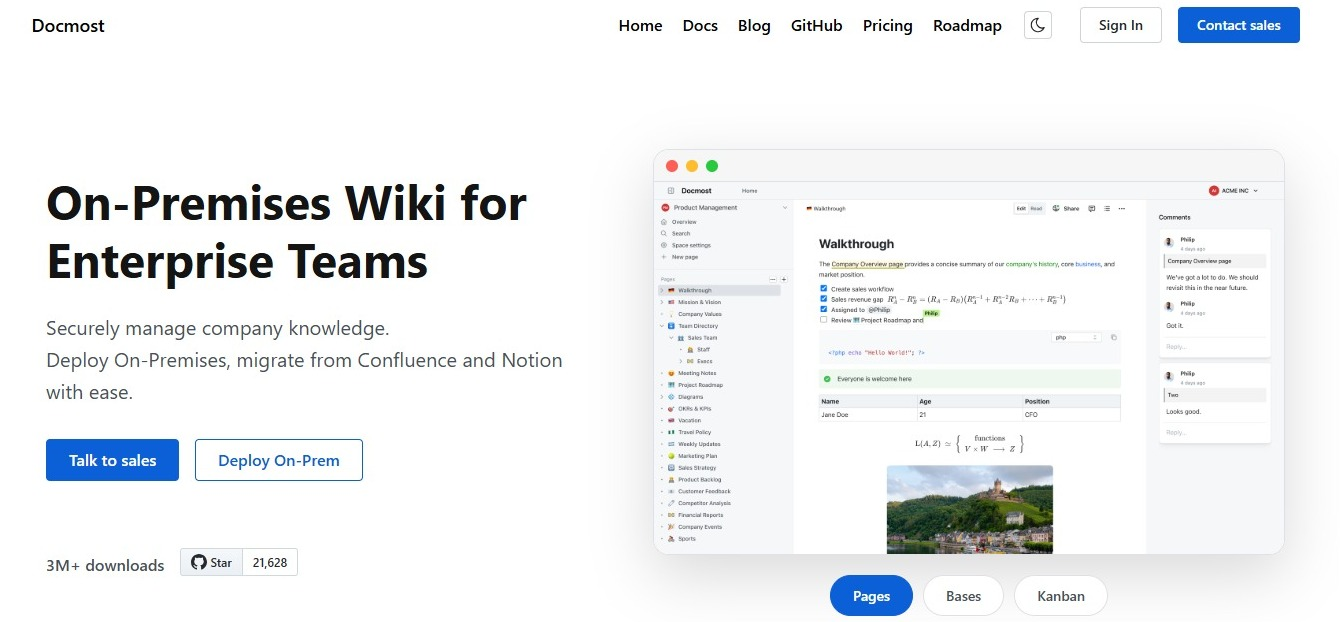
Docmost is an open-source, self-hosted wiki, so it sits in the internal wiki category above. These are some of its features that work well for a knowledge management system:
- Real-time editing: Your team can edit the same page together without overwriting each other's changes.
- Spaces and permissions: Content is organized into spaces for each team or department, and each space has its own permissions.
- Groups: Give a whole team access in one step instead of adding people one at a time.
- Comments: Feedback stays on the page it's about instead of scattering across chat.
- Page history: See how each page has changed and restore an earlier version.
- Search: Find answers without knowing which space to look in.
If you're setting up a wiki for a specific team, see wiki software for HR teams or documentation software for IT teams and MSPs.
Frequently Asked Questions
- What's the difference between knowledge management and a knowledge management system?
Knowledge management is the practice of creating, sharing, and keeping your team's knowledge current. A knowledge management system is the software that supports it, like a wiki with search and permissions.
- What are the main types of knowledge management systems?
The main types are internal wikis, knowledge bases, document management systems, intranets, and learning platforms. You can use more than one, since each is built for a different job.
- Is Docmost open source?
Yes. Docmost's core is open source under the AGPL 3.0 license. Some features come with the paid edition, which has its own license.
- Can I import existing docs into Docmost?
Yes. You can import pages in Markdown and HTML, and export them in the same formats if you ever need to move content out.
- Can non-technical teams use a self-hosted wiki?
Yes. Writing and editing pages works the same way it would in any wiki, so the people using it day to day don't need technical skills. Hosting, backups, upgrades, and security patching fall to your IT team.
- Does Docmost support single sign-on?
Yes. Single sign-on through SAML and OIDC is available in the paid edition.
Give your team a knowledge management system that works
With page history, comments, and permissions built in, Docmost helps new hires find answers faster and keeps knowledge with the team instead of in one person's head. Contact our sales team to talk through your setup and how Docmost would fit in.