Best 6 Knowledge Base Tools For Wrike Teams
Compare the 6 best knowledge base tools for Wrike teams, including Confluence, Guru, Slab, Notion, Docmost, and Slite, to find the right fit for your documentation needs.

TL;DR
- Wrike has a free knowledge base template that stores each article as an item in your Wrike account. And it works for small teams that stay inside Wrike.
- Once the articles outgrow that setup, you have to decide where your docs go next to Wrike and how they link back to your tasks.
- Six tools are compared on documentation only: Confluence, Guru, Slab, Notion, Docmost, and Slite.
- Only some of them have a Wrike connection of their own, and each section says which.
- Moving articles out of Wrike takes planning, because Wrike's Excel export leaves out attachments and comments.
Each article in the template has the same fields as any other Wrike item, including a status and assignees, and the template uses statuses such as Index and Obsolete to track where each article stands.
Wrike's AI assistant, Copilot, reads descriptions, comments, and custom fields, but only for the items under the folder, project, or space you start it from. And it's available on the Business, Pinnacle, and Apex plans.
This post is for teams that want a separate wiki or knowledge base next to Wrike. It compares six tools on documentation only: how they connect to Wrike, how people get answers, who can see what, and where the content is hosted.
Task management stays out of the comparison, because you already have it.
Docmost is our product and one of the six, so we judged it on the same points as the rest. The tools are listed by the choice you're facing, such as already using Atlassian or needing to host the docs yourself, and they aren't ranked best to worst.
For each tool, we checked the vendor's own pages for a Wrike connection, and we tell you when we found none. We also cover when to stay in Wrike, and what you can take with you when you leave.
Quick Comparison Of The Six Tools
|
Tool |
Best for |
Self-hosting |
AI answers |
Free option |
|
Confluence |
Teams already on Atlassian |
Data Center only, no longer sold to new customers, ends March 2029 |
Yes, on paid plans |
Yes, up to 10 people |
|
Guru |
Finding answers while you work in Wrike |
No |
Yes |
None listed on its pricing page |
|
Slab |
Showing Wrike tasks inside articles |
No |
Yes, on Business and Enterprise |
Yes, up to 10 people |
|
Notion |
One workspace for pages and databases |
No |
Yes, on Business and Enterprise |
Yes |
|
Docmost |
Hosting the docs yourself |
Yes |
Yes, AI Search in the paid edition |
Yes, free community edition |
|
Slite |
Review reminders on docs |
No |
Yes |
No, 14-day free trial |
The Wrike connection and access controls aren't columns because they take more than a yes or no to describe. Each tool's section below explains more. Also note that plans and prices change, so check each vendor's pricing page before you buy.
When Wrike's Built-in Knowledge Base Is Enough
If your team stays inside Wrike and keeps a modest number of articles, the built-in approach is enough and you can stop reading here. Everything below is for teams that have outgrown it, or are close to.
What Wrike's knowledge base template contains
Wrike's Company Knowledge Base template was built by a member of the Wrike community. You find it under Templates & Solutions by filtering for templates created by the community.
A space made from it has two main folders: All Knowledge Bases, which holds a help index and a sample department knowledge base, and zz_Obsolete Articles, for outdated content.
All Knowledge Bases
  All Knowledge Bases (help index)
  Sample Department Knowledge Base (sample index, article, and subarticle)
zz_Obsolete Articles
The template comes with three automations. When you change an item's status to "Add New Article," Wrike creates a subitem from the Knowledge Base Article blueprint (a saved starting layout) and sets its status to Index.
"Add New Sub-Article" works the same way for subarticles. When you set a status to "Obsolete," Wrike moves the item to the obsolete folder and adds a comment that mentions the assignees.
How Wrike search and Copilot find your articles
- Copilot, Wrike's AI assistant, answers questions from your knowledge base items and points to the article it used.
- It reads descriptions, comments, and custom fields.
- It only looks at items under the folder, project, or space you start it from, so start it where your articles are kept.
- It's available on the Business, Pinnacle, and Apex plans, not on Free or Team.
- Your account also needs generative AI turned on and the AI Addendum signed.
- Search lets you limit results to everywhere, the current space, or the current project or folder.
- If your articles are kept in different spaces, check if you can start Copilot from a spot that covers all of them.
Signs you've outgrown items as articles
- You have to switch between accounts to find an answer: Guru's case study on Wrike says Wrike's sales reps usually worked in demo accounts, not their own, so finding internal sales information meant switching back and forth.
- Search results are full of content you don't need: The same case study says their personal accounts held content the sales team didn't need, which got in the way of search. That's Guru's account of it, so take it as one side of the story.
- Copilot can't see articles outside the place you start it: Copilot only searches the folder, project, or space you open it from. Once your articles are spread across several spaces, it won't look at the ones outside that spot, so you have to keep track of where to start it.
How We Compared The Six
We only compared documentation features, and we took the answers from each vendor's own pages where we could:
- The Wrike connection: whether the tool has one, and what it does.
- AI answers: whether people can ask a question and get an answer from your docs, and on which plans.
- Access control: how you limit who can see or edit a page, as far as each vendor documents it.
- Self-hosting: if you can run it on your own servers.
- Free option: if it has a free plan or a free trial.
The 6 Best Knowledge Base Tools For Wrike Teams
The order follows the decision you're making: you're already on Atlassian, you need to find answers fast, you want Wrike tasks shown inside articles, you want one flexible workspace, you need to host the docs yourself, or you want review reminders on your docs. It isn't a ranking.
1. Confluence: Best If You Already Run Atlassian
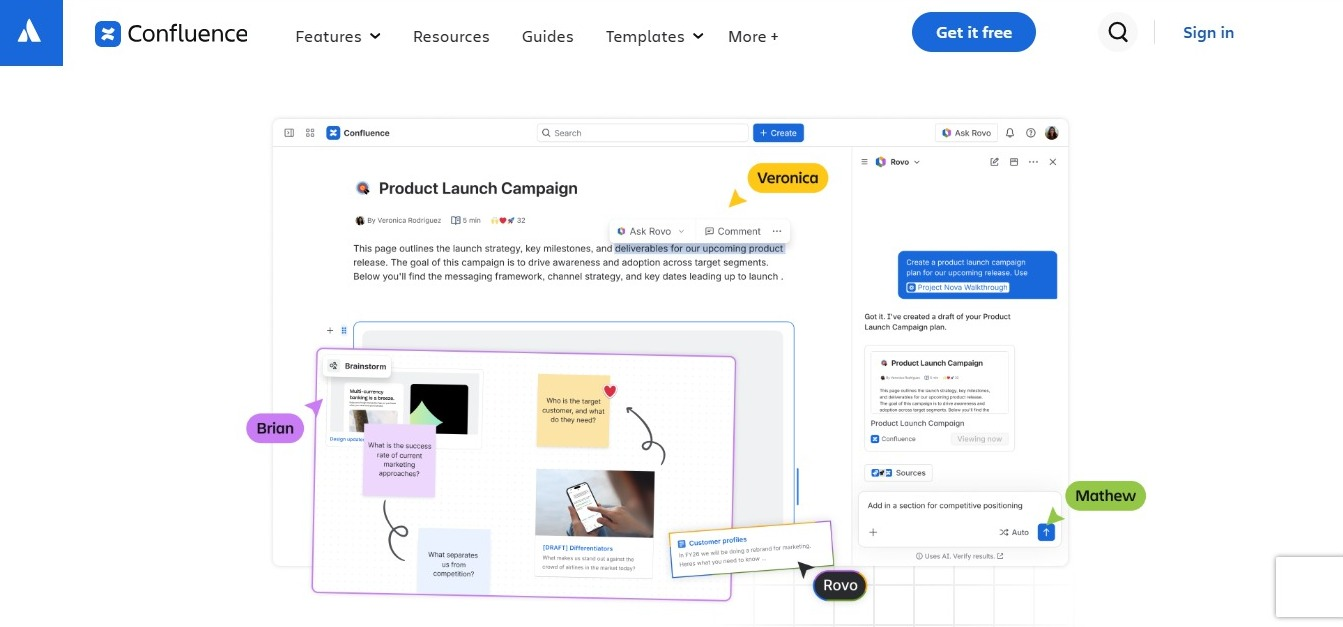
Connection to Wrike: A company called Bilith Labs builds an app called Wrike for Confluence, and it's listed on the Atlassian Marketplace as partner-supported, so it isn't a Wrike product. The app lets you add links on Confluence pages to Wrike tasks, folders, and projects, and those links stay current. It can also show the content of Wrike folders or projects on the page. A January 2019 reply in Wrike's community says the app shows Wrike content inside Confluence, but not Confluence content inside Wrike.
What it does well: On paid plans, Confluence lets you restrict who can view or edit a page. Its AI tool, Rovo, covers search, chat, and agents on the paid plans. There's a free plan for up to 10 people, though it doesn't let you set permissions on spaces or pages.
What to watch out for: The Wrike link depends on a partner app, so you're relying on a third party to keep it working. Self-managed Confluence, called Data Center, is ending. Atlassian says it reaches end of life on March 28, 2029, and new customers could no longer buy it from March 30, 2026. If you need to host your docs yourself, Confluence isn't a new option anymore. For a side-by-side look, see how Docmost compares to Confluence.
2. Guru: Best For Finding Answers From Inside Wrike

Connection to Wrike: Guru lists two Wrike integrations. One is a Chrome extension that brings Guru's knowledge into the page while you work in Wrike. The other, "Search Wrike with Guru," lets you search Wrike content from Guru. Guru's own case study also says Wrike's team adopted it.
What it does well: Guru's AI answers come with citations and follow permissions, and Guru can copy the permissions from connected sources like Slack and Google Drive. Inside Guru, you can set permissions on collections, folders, and individual pages, and give them to groups.
What to watch out for: Guru's pricing page doesn't list plans or prices. It says the cost is set after a first conversation with Guru, and it doesn't mention a free plan or a free trial. Guru keeps your data in its own cloud, so it isn't an option if you need to host the docs yourself.
3. Slab: Best For Showing Wrike Tasks Inside Articles
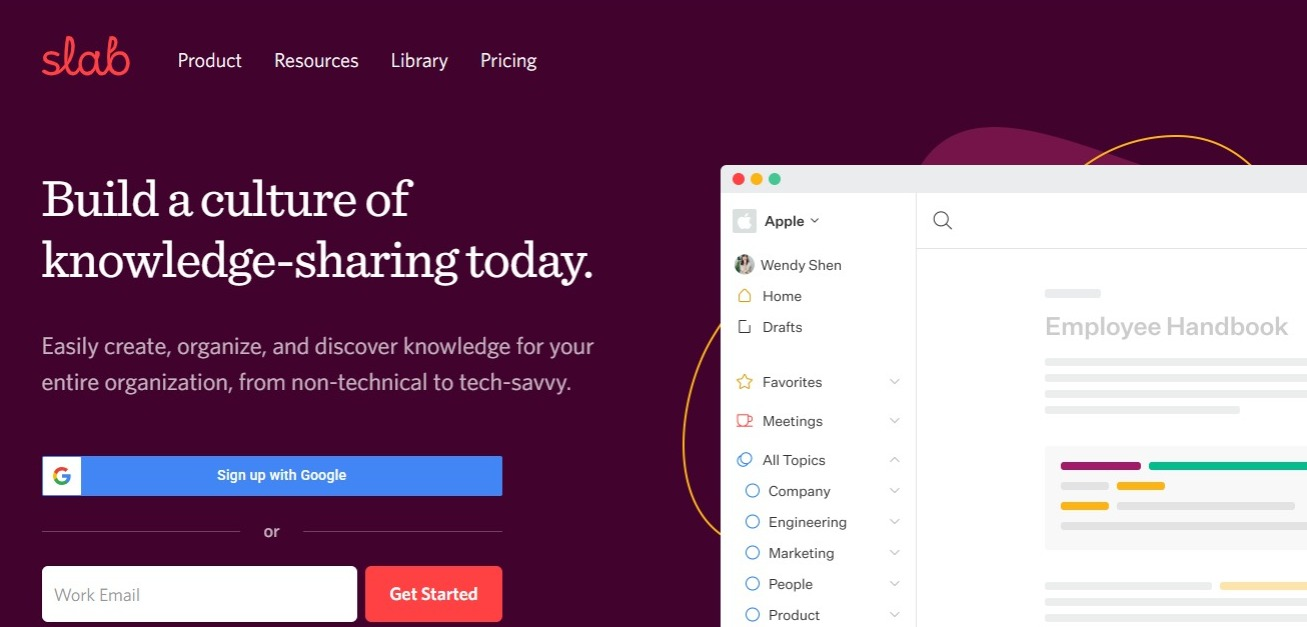
Connection to Wrike: After an admin turns on the integration, you can paste a Wrike task link into a Slab post and Slab shows a preview of the task, with more details when you hover over it. To get the link, open the task in Wrike and click the paperclip icon in the top right corner.
What it does well: A process page can link straight to the task where the work happens. Its free plan covers up to 10 people, and Private Topics, which limit a topic to chosen members, come with the paid plans.
What to watch out for: The integration we found covers task links inside Slab posts, and we didn't find a Slab view inside Wrike. Slab's AI answers, called Ask, come with the Business and Enterprise plans, not the lower plans.
4. Notion: Best For One Workspace For Pages And Databases

Connection to Wrike: We didn't find a Wrike app made by Notion. But the two connect through automation tools such as Zapier, where, for example, a new Notion database item can create a Wrike task or comment. A tool called Unito lists a sync between Notion and Wrike.
What it does well: It has a free plan. The Business plan adds finer database permissions and Notion's AI agent, and the Free and Plus plans get a limited trial of the AI.
What to watch out for: Because the Wrike link depends on an automation tool, you set it up and look after it yourself.
5. Docmost: Best When You Need To Host The Docs Yourself
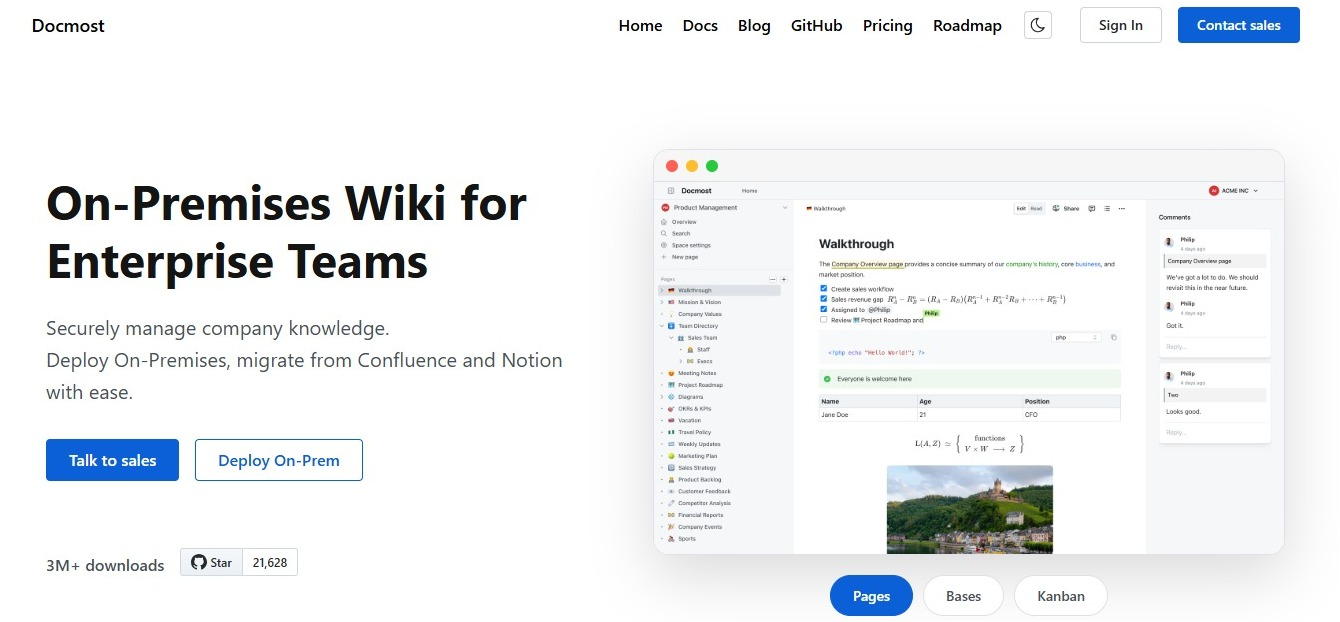
Connection to Wrike: We didn't find a Wrike connection for Docmost. Its integrations page lists GitHub, GitLab, Jira, Linear, Figma, and Azure DevOps. They show previews when you paste a link, and Wrike isn't one of them. You'd link the two by pasting Wrike task links into your pages.
What it does well: Docmost runs on your own servers, and self-hosting comes down to three points:
- Data never leaves infrastructure you control.
- You define your own compliance posture (access controls, encryption, retention) instead of inheriting a vendor's.
- Hosting, backups, upgrades, and security patching become your IT team's responsibility.
Docmost's docs also list a cloud version for teams that don't want to host it themselves. Real-time editing, spaces, and full-text search come with the free community edition.
The paid edition adds page-level permissions and AI Search, where an admin sets the AI provider. Docmost can also import Markdown, HTML, and Word files, plus exports from Notion and Confluence.
What to watch out for: There's no Wrike connection. Docmost doesn't send a reminder when a page is due for review. Its page verification feature lets you name verifiers and set a review date, but it's only in the Enterprise version of the paid edition.
If you want a reminder, you'll need to set up your own routine, like a Wrike task with a due date. For one way to do it, see how to assign page owners and review dates in a wiki. If you also want to organize your docs by project, see how to set up a project wiki for your team.
6. Slite: Best For Review Reminders On Docs

Connection to Wrike: The only Slite and Wrike connections we found were on third-party automation sites, not on a Slite page.
What it does well: Slite's AI search and answers feature is called Ask. Its doc verification lets you set an expiry date, and when it passes, the doc's owner gets a reminder to check it again. Slite also lets you name a person or group as the owner of each doc.
What to watch out for: Slite has no free plan, only a 14-day free trial, and you can't choose where your documents are stored.
How To Link Docs And Wrike Tasks When Where's No Native Integration
Notion, Docmost, and Slite have no Wrike connection of their own that we could find, so you'd link them one of two ways, listed from least to most effort: paste links both ways, or use an automation tool if your documentation tool works with one.
Here's the first route, using an expense policy page that needs regular review:
- Write the page in your documentation tool.
- In Wrike, create a task called "Review: Expense Policy" and give it a due date.
- Open the task and click the paperclip icon in the top right corner to copy its link, then paste the link near the top of the page.
- Paste the page's link into the task description.
Now anyone on the page can get to the task, and anyone on the task can get to the page. Pasted links don't update themselves, though, so nothing tells you when a task has been closed or a page has changed.
An automation tool, however, can take some of the manual work out of it. For example, Zapier's Notion and Wrike connection can create a Wrike task whenever a Notion database item is added or updated. We haven't tested these steps, so try them on one page first.
What You Can Take Out Of Wrike When You Move Articles
Your articles are stored in item descriptions and attachments, so what the export carries decides how hard the move is. Wrike's Excel export covers tasks and subtasks with their statuses, dependencies, assignees, dates, and time logs. Note that Wrike's help pages say attachments and comments aren't exported, and an export is limited to 65,000 rows.
If you need comments, Wrike's community lists three routes: an account backup, saving each task as a PDF (which includes the comments), or the API.
The Excel Export Route
Open the folder, project, or space you want to export, click the three-dot menu, point to Export, and choose Excel. The exact wording differs a little between a space and a project.
Wrike's help pages don't say whether task descriptions are in the file, and your articles are written in descriptions. A member of the Wrike Community team wrote in October 2025 that exporting a project from Table view with "Export project to Excel" should include a Descriptions column. They also said it covers one project at a time. So export one project and open the file before you plan anything around it.
The API Route For Bulk Export
If you have a lot of articles, a developer can pull them out through Wrike's API. It uses OAuth 2.0 to sign in and sends data back as JSON, a plain text format other tools can read. A Wrike community answer says a task request doesn't return the full description unless you ask for it with the fields setting.
Moving The Structure, Not Only The Text
Moving the text is only part of the job. You also need to decide where Wrike's folders and items go in your new tool. Here's one way to match them up:
In Wrike                          In your documentation tool
Knowledge Base (folder)           Space
  Department (folder)               Top-level page
    Article (item)                    Subpage
If you're moving to Docmost, the import and export guide shows which file types you can bring in.
Which Tool Fits Which Wrike Team
|
Your situation |
Tool to look at first |
|
You already run other Atlassian products |
Confluence |
|
Your main problem is finding answers while you work in Wrike |
Guru |
|
Your articles point to Wrike tasks all the time |
Slab |
|
You want one workspace for pages and databases |
Notion |
|
You need to host the documentation on your own servers |
Docmost |
|
You want a reminder when a doc is due for a check |
Slite |
If your team also uses other work tools, see our guides to wiki tools for Jira teams, wikis for project managers, and knowledge base tools for PMOs.
Frequently Asked Questions
- Can you use Wrike as a wiki?
Yes, up to a point. Wrike's free Company Knowledge Base template is built for it. It stores articles as items in folders and adds automations for new articles, subarticles, and obsolete articles. And it works for small teams that stay inside Wrike. The limits show up when articles spread across spaces, because Copilot only looks at the items under the place you start it.
- Can Wrike Copilot search a knowledge base?
Yes. Copilot can answer questions from knowledge base items, reading descriptions, comments, and custom fields, and it names the item it used. It only looks at items under the folder, project, or space you start it from. Copilot is on the Business, Pinnacle, and Apex plans, and your account needs generative AI turned on and the AI Addendum signed.
- How do you export a knowledge base from Wrike?
Use the Excel export for tasks and subtasks. It leaves out attachments and comments, and it's limited to 65,000 rows. For comments, use an account backup, save each task as a PDF, or use the API. Test the export on one project first, because Wrike's help pages don't say whether descriptions are included.
- Is Wrike free?
Yes. Wrike has a Free plan at $0 per user per month, and its pricing page says no credit card is required. It includes project and task management, a Kanban board view, and a table view. Gantt charts, shareable dashboards, and AI features come with the higher plans. Wrike's pricing page doesn't list a task or user limit for Free, so check it for what applies to you today.
- Does Wrike have a desktop app?
Yes. Wrike lists web, desktop, and mobile apps for Windows, Mac, iPhone, and Android on its Free plan.
- What is Wrike used for?
Wrike is a project and task management tool. Its pricing page describes breaking goals into tasks, assigning people, attaching files, and viewing schedules, with Kanban board and table views. Teams organize that work in folders, projects, and spaces.
Give Your Wrike Team A Knowledge Base That Answers Their Questions
Keep Wrike for your tasks and give your policies, how-tos, and project docs their own home. With Docmost, your team can organize articles into spaces, edit them together in real time, and search them in one place, and you can host it on your own servers if you choose.
Get a free trial license for the paid edition, or contact sales if you have questions about running it beside Wrike.