Best 5 Wiki Tools for Jira Teams
Compare 5 wiki tools for Jira on how they show your tickets, which Jira versions they work with, and which plan you need to use them.

TL;DR
- Jira doesn't come with its own wiki. Atlassian's wiki is Confluence, and four other tools can connect to Jira too.
- All five tools here let you paste a Jira issue link into a page and see the issue's details. Confluence is made by Atlassian, so it can also link pages and issues in both directions.
- Docmost is the self-hosted, open source pick and its Jira issue previews come with the paid edition.
- Check whether you use Jira Cloud or Jira Data Center before you choose, because Slite is only listed for Jira Cloud, while GitBook and Notion don't say whether they support Data Center.
A developer opens a Jira ticket and clicks the link to the specification. The page they land on is from before the latest scope change. They've already left Jira for a wiki. Now they check Slack to find out which version is current, only to see that the ticket and the specification say different things.
A wiki connected to Jira narrows that context-switching gap. The tools here show the ticket's details inside the page, so people don't have to open Jira just to check them, while Confluence links pages and tickets in both directions. And using Jira doesn't mean you have to use Confluence, because four other tools connect to it too.
This post checks what each tool does when you paste a ticket link, which Jira versions it supports, and which plan includes the feature. That includes Docmost's limits: its Jira previews come with the paid edition.
Does Jira Have a Wiki?

No. Jira tracks tasks, and it doesn't have a wiki for longer pages like specifications, decisions, and how-to steps. Atlassian's wiki is Confluence, which is a separate Atlassian product. Jira Cloud does have a Docs tab, but it only shows content from Confluence. To use it, you connect a Confluence space, folder, or page to your Jira project.
Docmost, Notion, Slite, and GitBook can all work as a wiki for Jira, so you can paste a ticket link into a page and see the ticket's details there.
Quick Comparison of the 5 Best Wiki Tools for Jira
|
Feature |
Docmost |
Confluence |
Notion |
Slite |
GitBook |
|---|---|---|---|---|---|
|
Best for |
Self-hosted wiki beside Jira |
Linking pages and issues both ways |
Wiki plus databases |
Answers across docs and Jira issues |
Developer and product docs |
|
Jira issue previews |
Yes (paid edition) |
Yes |
Yes |
Yes (plan not stated) |
Yes |
|
Jira Cloud |
Yes |
Yes |
Yes |
Yes |
Not stated |
|
Jira Data Center |
Yes |
Yes |
Not stated |
Not stated |
Not stated |
|
Self-hosting |
Yes |
Data Center only |
No |
No |
No |
|
Free option |
Community edition (no Jira previews) |
Free plan for up to 10 users |
Free plan |
14-day trial, no free plan |
Free plan (1 user) |
Docmost's Jira issue previews come with the paid edition. The Community edition is free and open source.
How We Chose These Tools
Every tool on this list does something with a Jira link you paste in. We compared them on four things:
- Jira integration: what each tool does with a pasted issue link
- Deployment: which versions of Jira it works with, and where the wiki itself runs
- Plan requirements: which plan includes the Jira feature
- Setup: how much work it takes to connect, and who needs admin rights
The 5 Best Wiki Tools for Jira Teams
1. Docmost: Best for Self-Hosted Wikis Beside Jira
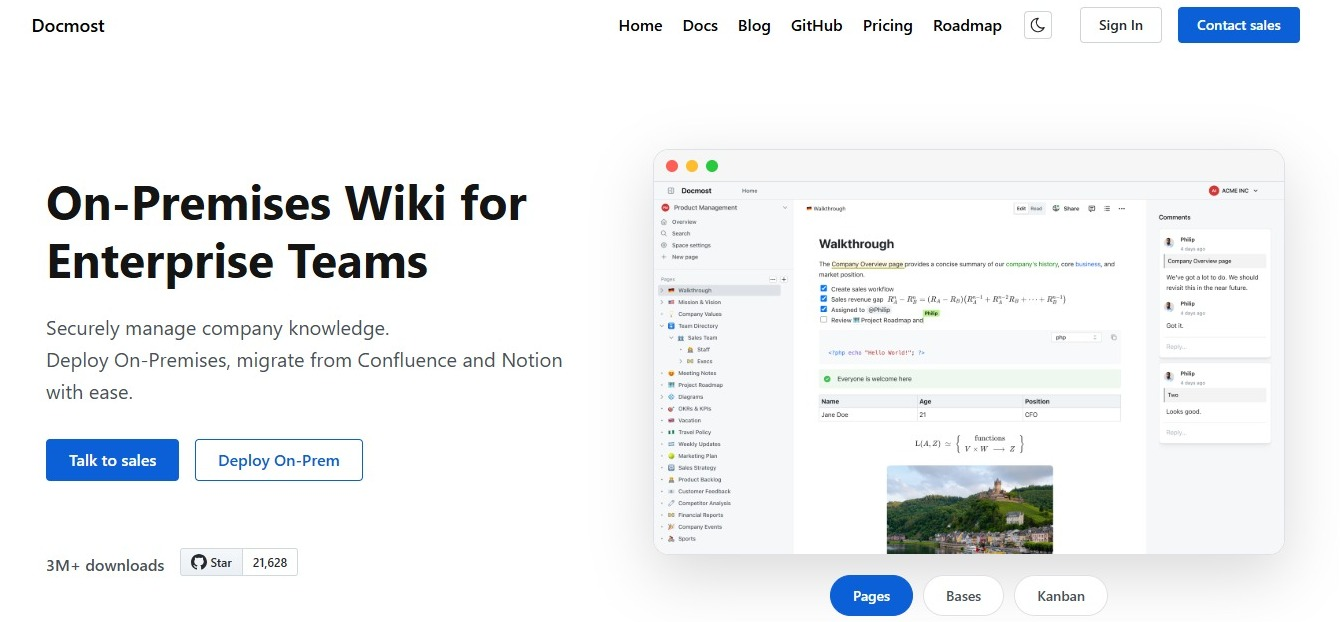
Docmost is an open source wiki you run on your own servers. It suits teams that want their docs next to Jira and kept in their own infrastructure.
- Best for: Teams on Jira Cloud or Jira Data Center that want a self-hosted, open source wiki.
- How it works with Jira:
- Paste a Jira link into a page and Docmost turns it into a preview.
- It works for a link to a single issue, and for a link to a Jira board or backlog with an issue selected.
- Docmost's setup guide uses a link like example-team.atlassian.net/browse/DOC-12 as its example. Paste a link like that into an empty paragraph and a menu called "Paste as" lets you choose Card, Mention, or URL. A card is a box with the details, and a mention is a short inline label.
- Previews are read-only.
- Docmost saves each preview for up to five minutes, so a change in Jira, or a change in someone's access, can take that long to show up.
- What each reader sees:
- If someone has connected their Jira account and can open the issue, they see the full preview.
- If they haven't connected, they see a label based on the link plus a button to connect.
- If they've connected but can't open the issue, they see only the label.
- Sharing a Docmost page doesn't give anyone access to the issue.
- Setup: Whoever runs your Docmost server sets up the connection once.
- In Jira, create a secure sign-in connection for Docmost. Jira Cloud uses Atlassian's developer console, and Jira Data Center uses an incoming application link.
- Add the details Jira gives you to Docmost's server settings, then restart Docmost.
- A workspace admin installs Jira in Settings.
- Each person connects their own Jira account.
- Docmost's Jira setup guide has every step.
- Free and paid plans: The Community edition is free and open source. The Jira previews come with the paid edition, and you can try the paid edition with a free trial license.
- Limits: Docmost doesn't recognize Jira Data Center links that have an extra folder in the address, like /jira/browse/DOC-12. Those stay as plain links.
Self-hosting Docmost comes down to three things:
- Your data never leaves infrastructure you control.
- You define your own compliance posture (access controls, encryption, retention) instead of inheriting a vendor's.
- Hosting, backups, upgrades, and security patching become your IT team's responsibility.
A space in Docmost groups pages, permissions, and people by project, team, or purpose, so you can give each Jira project its own space. For the steps, see how to set up a project wiki for your team.
2. Confluence: Best for Linking Pages and Issues Both Ways

Confluence is Atlassian's own wiki, so it connects to Jira in several ways.
- Best for: Teams that already use Atlassian tools and want pages and tickets linked in both directions.
- How it works with Jira:
- Paste a Jira issue link into a page and Confluence turns it into a preview. In Confluence Cloud, that's a Smart Link. In Confluence Data Center, it becomes a Jira Issues macro, which is a box that shows the issue.
- You can also add a macro yourself to show a list of issues from a Jira search (called JQL), or just a count of them. Confluence Cloud calls it the Jira work items macro.
- You can create a new Jira issue from the macro too.
- When a Jira issue is linked to a Confluence page, the link shows on the page under Show details, and the page shows up on the issue in Jira.
- Setup:
- The macro can show issues from Jira Cloud and from Jira Data Center.
- On Confluence Data Center, Atlassian's help pages say Confluence and Jira need to be connected with an application link first.
- Free and paid plans: Confluence has a free plan for up to 10 users, and the Standard and Premium plans have free trials.
- Limits: It ties you to Atlassian's tools. Also, if the person who adds an issue to a page doesn't have the Link Issues permission in that Jira project, the page won't show up on the issue.
If you run Confluence on your own servers, that's Confluence Data Center. Atlassian lists March 28, 2029 as the end-of-life date for that version, when subscriptions expire and the product becomes read-only. Atlassian also says it will offer extended maintenance after that date to some customers, by exception. Our guide to Confluence Data Center end of life options covers what that means for your team.
If you're choosing between Confluence and a self-hosted wiki, see how Docmost compares to Confluence.
3. Notion: Best for Jira Issues Inside Databases

Notion puts pages and databases in one workspace, and its Jira connection works with both.
- Best for: Teams that want their wiki and their databases in the same place.
- How it works with Jira:
- Paste a Jira link into a page, choose "Paste as preview," and Notion shows the issue. You can also type /jira in a page.
- Anyone in the workspace who can open the Notion page can see the preview.
- A separate Jira database sync copies Jira spaces and work items into Notion databases. It works with Jira Cloud only, and the synced properties are read-only in Notion.
- Setup:
- The first time you paste a Jira link, Notion asks you to connect your Jira account.
- For the database sync, go to Settings, then Connections, then Jira, and open Database sync.
- Free and paid plans: Notion has a free plan and several paid plans. The Jira database sync needs the Business or Enterprise plan.
- Limits: Notion runs in the cloud, so you can't host it yourself.
For a closer look, read our comparison of Notion and Confluence, or browse these open source Notion alternatives.
4. Slite: Best for Getting Answers Across Docs and Jira Issues

Slite is a cloud knowledge base, and it can pull Jira issues into your docs and into its AI helper.
- Best for: Teams on Jira Cloud that want quick answers from their docs and their tickets in one place.
- How it works with Jira:
- When you paste a Jira issue link into a Slite doc, it shows as a preview tile with the title, the status, and other key details.
- You can expand the tile to see the project, the priority, and the description.
- The tile links back to Jira and stays up to date as the issue changes.
- You can also type /Jira in the editor.
- Jira can be a source for the Slite Agent, Slite's AI helper, which is part of the Pro plan.
- Setup:
- You need to be an admin in both Slite and Jira.
- You set it up once for the whole workspace, either from Slite's Integrations settings or by pasting a Jira link and allowing the connection when Slite asks.
- Free and paid plans: Slite's pricing page shows a 14-day free trial but no free plan. The editor lets people work on a page together live on every plan. Slite's Jira help page doesn't say which plan includes Jira previews, so ask Slite before you buy.
- Limits: Slite's Jira app on the Atlassian Marketplace is listed for Jira Cloud, and Slite's Jira help page doesn't mention Jira Data Center.
5. GitBook: Best for Developer and Product Docs With Jira Embeds
GitBook describes itself as a docs platform for technical teams.
- Best for: Engineering and product teams writing technical docs.
- How it works with Jira:
- Paste a Jira link into the editor.
- GitBook turns it into an embed that shows the issue's title, status, and assignee.
- Setup:
- You authorize the connection between Jira and GitBook.
- You can install it on a single space, or turn it on for many or all spaces in your organization settings.
- Free and paid plans: The free plan covers one user. Paid plans are priced per docs site, and editing a page together live starts on the paid plans. GitBook's pricing page lists integrations on every plan, including Free, so the Jira embed doesn't need a paid plan.
- Limits: GitBook runs in the cloud, and only the code that displays published sites is open source. GitBook's Jira page doesn't say whether the integration works with Jira Cloud, Jira Data Center, or both.
If GitBook is close but not quite right, here are some GitBook alternatives.
Check Which Version of Jira You Use
Jira Cloud is the version Atlassian hosts for you, and Jira Data Center is the version you run on your own servers. Knowing which one you use is the fastest way to cut the list down. Docmost and Confluence both work with Jira Cloud and Jira Data Center. Slite's Jira app, however, is listed for Jira Cloud, and neither GitBook's Jira page nor Notion's current help pages say whether they work with Data Center.
Atlassian lists Jira Software Data Center as one of the products that reach end of life on March 28, 2029. If you use Data Center today, keep that date in mind when you choose a wiki, because your Jira setup may change by then.
Which Wiki Should You Choose for Your Jira Setup?
|
Your situation |
Best fit |
|
You want a self-hosted, open source wiki on Jira Cloud or Jira Data Center |
Docmost |
|
You want pages and tickets linked in both directions |
Confluence |
|
You want your wiki and your databases in one workspace |
Notion |
|
You want quick answers across docs and Jira issues, and you use Jira Cloud |
Slite |
|
You're writing developer-facing docs with Jira embeds |
GitBook |
If Jira support is only one thing you need from a wiki, you can compare more options in our lists of internal knowledge base tools and self-hosted documentation tools.
Best Practices for Using a Wiki With Jira
Link Tickets to Wiki Pages
Paste the ticket link into the wiki page, then paste the page link into the Jira ticket. That way, someone starting from either side can get to the other in one click. In Docmost, paste the ticket link into an empty paragraph without selecting any text, then choose Card or Mention.
Match Spaces to Jira Projects
Give each Jira project its own space in the wiki so people know where to look. Our guide on keeping a self-hosted wiki beside your tracker covers what goes in the wiki and what stays in the ticket.
Check Who Can See Ticket Details
Wikis don't all decide this the same way. In Docmost, readers see the full preview only if they've connected their own Jira account and can open the issue. In Notion, anyone in the workspace who can open the page can see the preview.
Give Every Page an Owner
Pages that your tickets point to need someone responsible for keeping them current. For the steps, see how to assign page owners and review dates in a wiki.
Frequently Asked Questions
- Does Jira have a built-in wiki?
No. Jira tracks tasks, and Atlassian's wiki is Confluence, which is a separate product. Jira Cloud has a Docs tab, but it only shows content from Confluence, so you need to connect a Confluence space, folder, or page to use it. Docmost, Notion, Slite, and GitBook can also connect to Jira.
- Which wiki tools work with Jira Data Center?
Docmost and Confluence both work with Jira Data Center. Slite's Jira app is listed for Jira Cloud, and neither GitBook's Jira page nor Notion's current help pages say whether they work with Data Center. Atlassian lists March 28, 2029 as the end-of-life date for Jira Software Data Center.
- What should go in a wiki and what should stay in Jira tickets?
Keep the task itself in Jira, like the owner, the status, the due date, and the back and forth while the work is happening. Put anything people will need after the ticket closes on a wiki page, like the project brief, the decisions, and the how-to steps. Then link the ticket to the page. For more on splitting the two, see how to keep a self-hosted wiki beside your tracker.
- Can I move my Confluence pages to a different wiki?
Yes. Export your Confluence space as HTML, then in Docmost open the import dialog in the space you want, click Confluence, and upload the ZIP file you exported. Importing from Confluence is part of the paid edition. The import and export guide has the full steps.
- How do I limit wiki access by project?
Give each project its own space, then add people or groups to it with a role. In Docmost, the roles are Full Access, Can Edit, and Viewer. Limiting individual pages to specific people is part of the paid edition. For more, see our guide on how to manage wiki permissions for large teams.
- How do I keep wiki pages up to date as projects change?
Give every page an owner and a review date. The owner updates the page when the project changes, and the review date catches anything that slipped through. More on this: how to assign page owners and review dates.
Put Your Project Docs Next to Jira
Docmost gives your team an open source wiki you can run on your own servers, and the paid edition adds Jira issue previews. Get a free trial license to try the paid edition with your own Jira projects, or contact sales to talk through your setup.