Best 6 Wiki Tools for Basecamp Teams in 2026
Compare 6 wiki tools for Basecamp teams on editing, access controls, hosting, and standout features to see which fits your docs.

TL;DR
- Basecamp keeps documents and files inside each project. But it isn't described as a place for company-wide answers, so you'd add a wiki next to it.
- This list compares six wiki tools on documentation only. The table has no task management columns, because Basecamp already covers that.
- Keep announcements, check-ins, and task talk in Basecamp. Move anything people ask about twice, like processes, policies, client onboarding steps, and final decisions, into the wiki.
- Pick by team size, by how much control you need over who sees which page, and by whether you want to host the wiki yourself.
Someone on your team wrote the client onboarding steps in a Basecamp message thread months ago. Today a new hire asks where they are, and three people give three different answers.
The thing is, Basecamp is built around projects. Its "Docs & Files" area keeps documents and files for each project, and files come with version history. The feature page talks about storing and discussing files. This doesn't describe a wiki.
With a wiki, those onboarding steps would be on one page with one owner, and the new hire would get the same answer from everyone.
Switching project tools won't fix this, and you probably don't want to switch anyway. This list keeps Basecamp for tasks and conversation and compares six wiki tools on documentation alone.
You'll also get a simple rule for what stays in Basecamp and what moves, so the new wiki doesn't turn into a second message board.
Quick Comparison of Wiki Tools for Basecamp Teams
|
Tool |
Real-Time Editing |
Version History |
Access Controls |
Hosting |
Standout Feature |
|
Notion |
Yes |
Yes, how far back depends on the plan |
Edit, comment-only, and read-only access |
Cloud only |
Page lock to stop accidental edits |
|
Slite |
Not stated on Slite's pages |
Yes, with restore |
Doc permissions for who can view or edit a doc and its sub-docs |
Cloud (Google Cloud, EU) |
Verification states on docs |
|
Docmost |
Yes |
Yes, with restore |
Space permissions, plus page-level permissions in the paid edition |
Self-hosted (open source, AGPL 3.0 license) or cloud |
Spaces with a nested page tree |
|
Nuclino |
Yes |
Yes, how far back depends on the plan |
Admin, member, and guest roles, plus editing restrictions |
Cloud only |
Instant search |
|
Guru |
Yes |
Yes, you can go back to an earlier version |
Public and restricted cards, plus permission-aware answers |
Cloud (AWS) |
Verified answers, with Basecamp as a search source |
|
Confluence |
Yes |
Yes, with restore |
Space permissions and page restrictions |
Cloud, or Data Center (self-managed), which Atlassian is retiring |
Page restrictions that pass down to child pages |
Does Basecamp Already Work as a Wiki? Docs & Files Explained
Not as a wiki, going by how Basecamp describes it. Docs & Files is a place to keep a project's documents and files, and that's what Basecamp's feature page says it's for.
The page confirms these points:
- Every project gets unlimited space for docs, files, and images.
- You can upload by dragging and dropping.
- Every file keeps a complete version history.
- You can discuss a file or image right on the file itself.
- You can link Google Docs and talk about them in Basecamp.
- You can reorder and color-code files.
- It works with cloud files from tools like Figma, Airtable, and Dropbox.
Basecamp's help center adds that text docs are a place to share notes and ideas, and that your team can edit them together. When you link to a document or file from a message or to-do, Basecamp adds a Reference automatically, so related items point to each other.
The feature page doesn't mention folders, search, or permissions on docs. The page doesn't claim them, though Basecamp may still have them, so test them in your own account before you decide. Try nesting one document under another, search for a phrase that is inside a document, and check who's allowed to see and edit it.
Some add-on tools also publish Docs & Files as a public help site on your own domain. That helps with customer-facing FAQs, but it only publishes pages. It isn't a place for your team to build a company wiki.
What Stays in Basecamp and What Moves to the Wiki
The rule is simple: if people will ask for it again, it's a wiki page. But if it belongs to today's work, it stays in Basecamp.
|
Content |
Where It Goes |
Why |
|
Announcements and check-ins |
Basecamp |
They belong to a moment and lose value once the week moves on. |
|
Task discussion and approvals |
Basecamp |
The context is the task. |
|
Project files and client files |
Basecamp |
Docs & Files keeps them with the project, with version history. |
|
Final decisions |
Wiki, with a link back in the Basecamp thread |
The thread contains the reasoning, while the wiki contains the answer. |
|
Processes and how-to steps |
Wiki |
People look these up months later. |
|
Client onboarding steps |
Wiki |
New hires and new clients ask the same questions. |
|
Policies and internal rules |
Wiki |
They need one owner and one current version. |
|
Meeting notes |
Basecamp for the full meeting notes, wiki for the final outcome |
Keeps the wiki short. |
To keep the two in sync, paste the wiki page's link into the Basecamp thread where the decision happened, and put a link back to that thread at the bottom of the wiki page. That way, whoever finds one can get to the other.
What We Looked for in Each Wiki Tool (Documentation Only)
Each tool is judged on the things a Basecamp team needs from a wiki:
- Page organization: you should be able to find things without scrolling a thread.
- Real-time editing: two people should be able to work on the same page.
- Access controls: clients and contractors in Basecamp shouldn't see everything.
- Version history: you should be able to undo a bad edit.
Task management, time tracking, and chat are left out. This is because Basecamp handles those, and you're not here to replace it.
The features below come from each vendor's own help pages.
The 6 Best Wiki Tools for Basecamp Teams
1. Notion
Notion works well when you want one flexible workspace for docs and notes. It gives you a blank canvas, so you decide how pages are organized.
What It Does Well:
- There's no limit on how many people can edit the same page at once, and you can see where each person is working.
- You can give people edit, comment-only, or read-only access.
- You can lock a page so nobody changes it by accident.
- Version history shows what changed and who changed it, and you can restore an earlier version.
What to Watch Out For:
- Someone on your team has to decide how pages are organized, or the workspace gets messy fast.
- How far back version history goes depends on your plan.
Connection to Basecamp: We didn't find a built-in Basecamp connection from Notion. Automation tools can connect the two, but the examples we found mostly copy to-dos, messages, and projects from one app to the other. They don't link your Basecamp documents to your wiki pages. The simplest way to connect them is to paste a Basecamp link into a Notion page.
2. Slite

Slite suits small teams that want a simple place for company docs.
What It Does Well:
- Doc permissions let you control who can view or edit a doc and its sub-docs.
- You can publish docs to the web for a help center.
- Doc history shows what changed and lets you go back to an earlier version.
- Docs can carry verification states, which help people tell which pages someone has checked.
- Slite's AI answers questions from your own content and shows its sources.
What to Watch Out For:
- Slite's pages don't say whether several people can edit the same doc at the same time, so test that with your team before you commit.
- Its pricing page doesn't list an import feature by name. It just lists file upload, plus migration support on the Enterprise plan, so ask the Support team how your existing documents will move over.
Connection to Basecamp: Slite's integrations page lists project tools like Asana, ClickUp, Jira, Linear, Monday.com, and Trello. Basecamp isn't on it. Slite also works with an automation tool that connects many apps, so a Basecamp link might be possible, but we didn't find a ready-made example.
3. Docmost
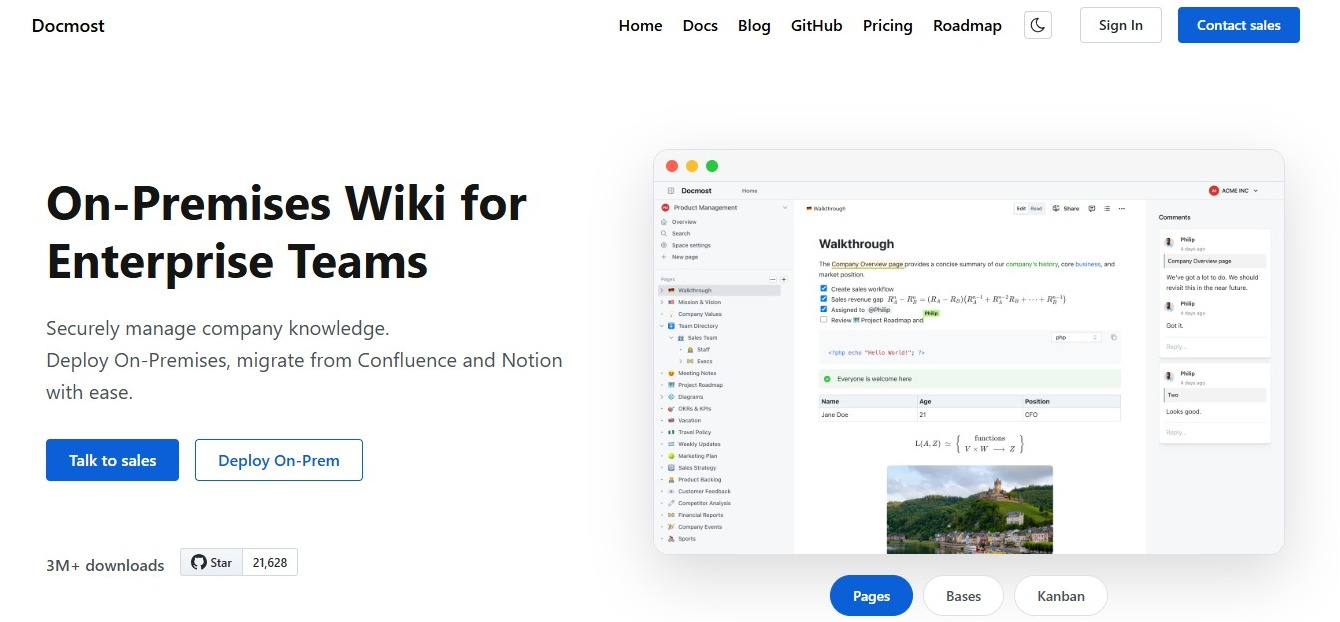
Docmost is an open-source wiki built around spaces and a page tree. You group pages into spaces for different teams or projects, and nest pages under each other.
What It Does Well:
- You can drag pages around the sidebar to reorganize them.
- Several people can edit the same page at the same time.
- Page history lets you restore earlier versions.
- Search covers the full text of your pages.
- Workspace and space permissions are in the free Community edition. That matters when you share a Basecamp project with clients or contractors, because you can keep client-facing pages in one space and internal pages in another.
- Imports from Markdown, HTML, and Notion are free. Our import and export guide lists the file types Docmost can bring in.
- You can host it yourself or use the cloud version.
What to Watch Out For:
- Page-level permissions are in the paid edition only.
- The Confluence importer is in the paid edition only.
- AI Search is in the paid edition only. It understands what someone is asking and finds the right pages. An admin turns it on and sets up an AI provider, and it respects page permissions.
If you host Docmost yourself, three things follow. Your data never leaves infrastructure you control. You define your own compliance posture (access controls, encryption, and how long data is kept) instead of inheriting a vendor's. And hosting, backups, upgrades, and security patching become your IT team's responsibility. The cloud version is available if you'd rather avoid all that.
If you're comparing it with Confluence, see how Docmost compares to Confluence. And to set up your first spaces, read how to create a knowledge base in Docmost.
Connection to Basecamp: Docmost's integrations cover tools like Jira, Linear, GitHub, and Figma. Basecamp isn't on the list, and we didn't find an automation example either. The practical setup is to link to the wiki page from the Basecamp thread, and link back.
Docmost also supports MCP, a standard that lets an AI assistant like Claude read and update your wiki. MCP servers exist for Basecamp too, so an assistant connected to both could read from Basecamp and write to the wiki.
4. Nuclino
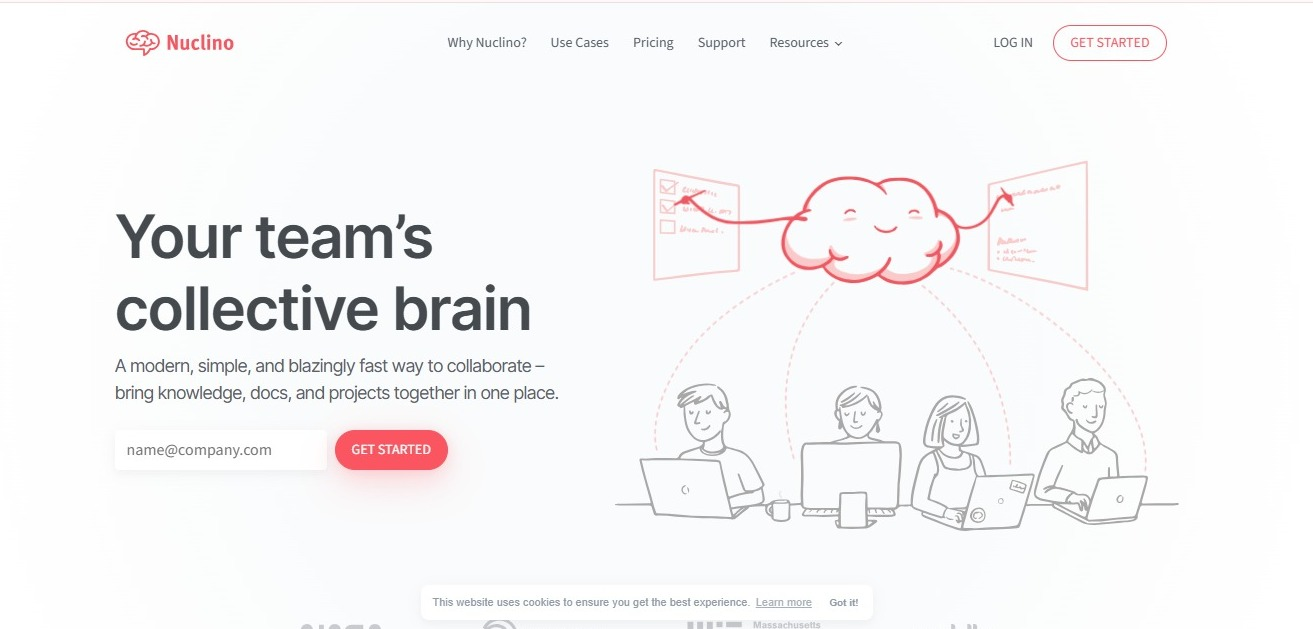
Nuclino is a wiki built for speed, and it works well for small teams.
What It Does Well:
- Every document can be edited by several people at once.
- Changes are kept in version history.
- Its site lists instant search among its speed features.
- Access restrictions work through admin, member, and guest roles, plus editing restrictions that make someone comment-only or read-only.
What to Watch Out For:
- Plans differ on how far back version history goes.
- Check which plan includes the permission settings you need.
- Ask how importing existing documents works before you commit.
Connection to Basecamp: Nuclino's pricing page names Slack and Google Drive as examples of apps it works with. We found no mention of Basecamp, and no automation example either.
Nuclino also supports MCP on all plans, which lets an AI assistant like Claude read and update your wiki. MCP servers exist for Basecamp too, so an assistant connected to both could read from Basecamp and write to the wiki.
5. Guru

Guru stores knowledge as short answer pages called Cards. Its focus is verified answers.
What It Does Well:
- Several people can edit a draft Card at the same time and see each other's changes as they happen.
- You can share a draft for review before it is published.
- Card edit history lets you revert to an earlier version.
- Its homepage talks about verifying content, sending items to an expert for review, and giving answers that show their sources and respect permissions.
What to Watch Out For:
- Only people with the right role in a Collection, such as a Collection Owner, can create and edit Cards. That fits a team with a few owners better than a team where everyone writes.
- Pricing is custom.
Connection to Basecamp: Guru is the one tool here with a documented Basecamp connection. Its help center has a page on setting up Basecamp as a source, and you need to be a Basecamp admin to connect it. Once it's connected, you choose who in Guru can see that content, and people without access to the source won't see Basecamp results in search or chat.
Guru's Basecamp page says you can search to-do lists, projects, people, and comments. It doesn't mention documents, so check whether your Docs & Files content shows up before you rely on it. Guru also offers a browser extension that works alongside Basecamp.
6. Confluence
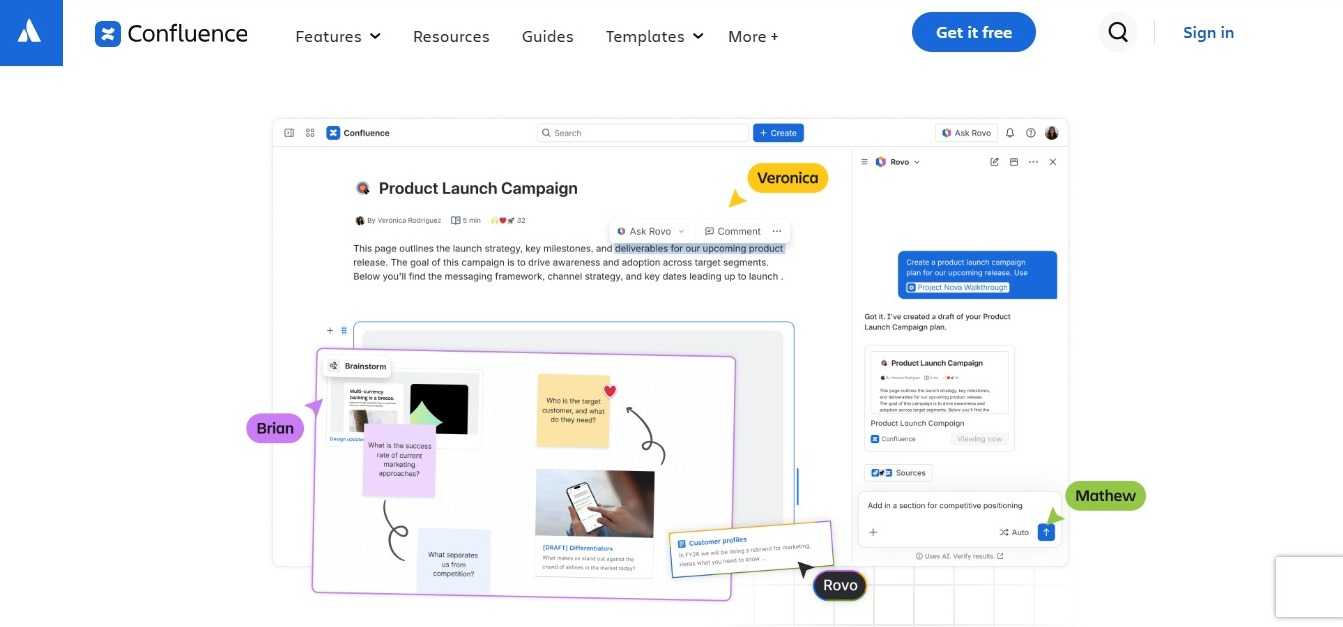
Confluence suits larger teams that need structured spaces, page restrictions, and strong admin controls.
What It Does Well:
- Pages are kept in spaces and placed under parent pages.
- Several people can edit a page together in real time.
- Page history lets you see who changed what and reverse changes.
- Permissions work on three levels: site-wide, per space, and per page.
- A view restriction on a page passes down to its child pages.
What to Watch Out For:
- Three permission levels mean more to set up and keep track of than in the simpler tools here.
- Atlassian has announced that it is retiring Confluence Data Center, the self-managed edition, so if you want control over hosting, look at that timeline first.
Connection to Basecamp: We didn't find a built-in Basecamp integration from Atlassian. An automation tool does list a connection for Confluence Server that creates a Confluence page when something happens in Basecamp, such as when a new account is created.
How to Pick a Wiki Based on Your Team
|
If You... |
Start With |
|
Are a small team and want the simplest place to start |
Slite or Nuclino |
|
Need to control who sees which page, including clients and contractors |
Notion, Slite, Docmost (page-level permissions are in the paid edition), or Confluence |
|
Want the wiki on infrastructure you control |
Docmost |
|
Want one search that reaches into Basecamp's to-dos, projects, and comments, plus your other tools |
Guru |
|
Already use Atlassian tools |
Confluence |
If you want more options, see our list of internal wiki alternatives to Confluence and Notion.
Teams that also use other project tools can read our guides to knowledge base tools for Wrike teams and wiki tools for Jira teams.
Frequently Asked Questions
- Does Basecamp Have a Wiki?
Basecamp's feature page for Docs & Files describes storing, discussing, and versioning documents and files, not a wiki. Its help center says your team can edit text docs together. If you want linked pages in a tree that your whole company can browse, you'd add a separate wiki next to Basecamp.
- Can I Use Basecamp Docs & Files as a Knowledge Base?
For a project's reference files and notes, yes. The feature page lists unlimited space per project, version history on files, comments on files, and linked Google Docs. It doesn't mention folders, search, or permissions on docs, so test those in your account first. If you need a page tree your whole team can browse, a wiki fits better.
- Which Wiki Tools Connect to Basecamp?
Of the six here, Guru is the one with documented Basecamp support, through a source you set up with a Basecamp admin account. We found no built-in Basecamp connection for the other five. Automation tools can link Basecamp to some of them, but the examples we found mostly copy to-dos, messages, and projects, not documents. The simplest fallback for any wiki is a link from the Basecamp thread to the wiki page.
- Can I Publish Basecamp Docs as a Public Help Center?
Add-on tools exist that publish Docs & Files as a public help site. A wiki can do something similar. Docmost lets you share a page publicly with anyone who has the link.
- How Do I Keep a Wiki From Turning Into a Second Message Board?
Put only finished answers in it. Give every page one owner, and link between the Basecamp thread and the wiki page so the debate stays in Basecamp and the answer stays in the wiki.
- Is There a Free Wiki for a Small Basecamp Team?
Notion and Nuclino both list free plans, and Docmost's Community edition is free and open source. Each one has limits on its free plan, so look at the plan details before you move your docs over.
Give Your Basecamp Team a Wiki Where Answers Are Easy to Find
Your team shouldn't have to dig through old threads to find an answer. Keep the project talk in Basecamp, and put each final answer on one wiki page that people can search. Get a free trial license for Docmost, or talk to our team.