Best 6 Wikis For Project Managers
Compare 6 wikis for project managers on templates, permissions, real-time editing, and hosting to see which fits how you run projects.

TL;DR
- A wiki for project managers stores the background behind your work, like decisions, templates, and meeting notes. Your tracker stores the tasks.
- We compared Docmost, Confluence, Notion, ClickUp Docs, Nuclino, and Outline on hosting, licensing, real-time editing, templates, and permissions.
- The right pick depends on the documents you write most, who outside your team needs to read them, how the wiki fits your tracker, and where your data has to be stored.
- A wiki won't replace your scheduling software. It works alongside it.
It's Thursday afternoon, and a teammate pings you for the third time today: where's the link to the project plan? You built that page weeks ago. It's in the wiki, but it's easier to ask you than to look for it.
Then your project sponsor asks why the launch moved to the second phase. You remember the team agreeing to it, but the reasons are buried in a chat thread, a forwarded email, or notes from a call nobody wrote up. You've got the decision and none of the reasoning behind it.
A wiki for project managers gives that kind of information one home. Your charter, decision log, status reports, and meeting notes are kept in pages your team can edit together and search later.
Below are six wikis judged on what a project manager needs: templates for the documents you write on every project, sharing with people outside your team, and permissions for pages like budgets. Where a feature costs extra, we say so.
Quick Comparison Table
|
Tool |
Hosting and license |
Real-time editing |
Templates |
Permissions |
Best for |
|
Docmost |
Cloud or self-hosted. Open source (AGPL-3.0) |
Yes |
Yes (paid edition) |
Space level, plus page level in the paid edition |
Project spaces, with the option to host it yourself |
|
Confluence |
Cloud. Data Center is no longer sold to new customers |
Yes |
Yes |
Space level, plus page restrictions |
Teams that run their projects in Jira |
|
Notion |
Hosted by Notion |
Yes |
Yes |
Teamspace and page level |
Documents and project databases in one place |
|
ClickUp Docs |
Hosted by ClickUp |
Yes |
Yes |
Doc level, and pages inherit from the Doc |
Teams already managing tasks in ClickUp |
|
Nuclino |
Hosted by Nuclino |
Yes |
Yes |
Team and workspace roles |
Small teams that want a lightweight wiki |
|
Outline |
Cloud or self-hosted. Source-available (BSL 1.1) |
Yes |
Yes |
Collection and document level |
Teams that want a real-time editor and the option to host it themselves |
In Docmost, templates, page-level permissions, Bases, and link previews from tools like Jira are part of the paid edition.
What Is a Wiki for Project Managers, and How Is It Different From Your Tracker?
A wiki is a shared set of pages your team can write, edit, link, and search. For a project manager, it's where you keep the information that explains the work: the charter, the reasons behind a scope change, the weekly status reports, and the notes from steering meetings.
Your tracker does a different job. It tells people what to do next, who owns it, and when it's due. The wiki tells them why the work exists and what was decided along the way.
What Goes in the Wiki vs the Tracker
|
Put it in the wiki |
Put it in the tracker |
|
Project charter and scope |
Tasks, owners, and due dates |
|
Decision log |
Sprints, milestones, and schedules |
|
Status reports and meeting notes |
Bugs and change requests |
|
Risk and issue descriptions |
Work assigned to fix a risk or issue |
|
RACI chart and stakeholder list |
Timelines and dependencies |
|
Onboarding guide for new team members |
Onboarding tasks for a specific new hire |
Use this rule: if something changes every day and has someone assigned to it, it belongs in the tracker. If someone will need to read it later to understand why the project went the way it did, it belongs in the wiki.
When a Built-In Docs Feature Is Enough
Plenty of project management tools come with their own docs feature. Built-in docs can cover you if you run one small project, your whole team works inside that tool, and nobody outside the team needs to read your documents.
A dedicated wiki makes more sense once you're running several projects at once, sharing documents with people who never open your tracker, or deciding who can see budgets and contracts. If you want to run a wiki and your tracker side by side, see how to keep a self-hosted wiki beside your tracker.
What to Look for in a Wiki for Project Managers
- Templates for Charters, Status Reports, and Meeting Notes
Choose a tool whose templates come with the plan you'd buy, not only with a higher one. Every project produces the same kinds of documents over and over. Templates give each charter, status report, and set of meeting notes the same sections, so readers always know where to find the budget line or the list of open risks.
- Sharing With Stakeholders Who Don't Work in the Tool
Find out what a reader outside your team needs before you send them a link. Sponsors, clients, and executives often want to read your status reports without learning a new app. Some wikis let you publish a page to anyone with the link. Others need each reader to have an account or a guest seat.
- Permissions for Clients, Sponsors, and Vendors
Check if a wiki can lock down a single page or only a whole space. Most of a project wiki can be open to the whole team, but budget details, vendor contracts, and staffing notes usually can't. Then confirm which plan includes the level of control you need.
- Search and Page Structure
Look for a clear way to organize pages by project, such as one space per project with nested pages underneath. Then test the search with the words a teammate would type, not the exact page title you gave it.
- Fit With Your Tracker
Decide if you need a direct connection to your tracker or if links are enough. Some wikis connect to a tracker, so a page can show live ticket details. Others work by linking: you paste a ticket link into the page and a page link into the ticket. Both approaches work, so the question is which one your team will keep doing.
- Hosting and Admin Effort
With a cloud wiki, the vendor runs the servers, so your job is reviewing their security controls and contract terms. If your company prefers to run software on its own infrastructure, self-hosting changes three things:
- Your data never leaves infrastructure you control.
- You define your own compliance posture (access controls, encryption, retention) instead of inheriting a vendor's.
- Hosting, backups, upgrades, and security patching become your IT team's responsibility.
Bring your IT team into the conversation early, since they'll be the ones running it.
The 6 Best Wikis for Project Managers
1. Docmost
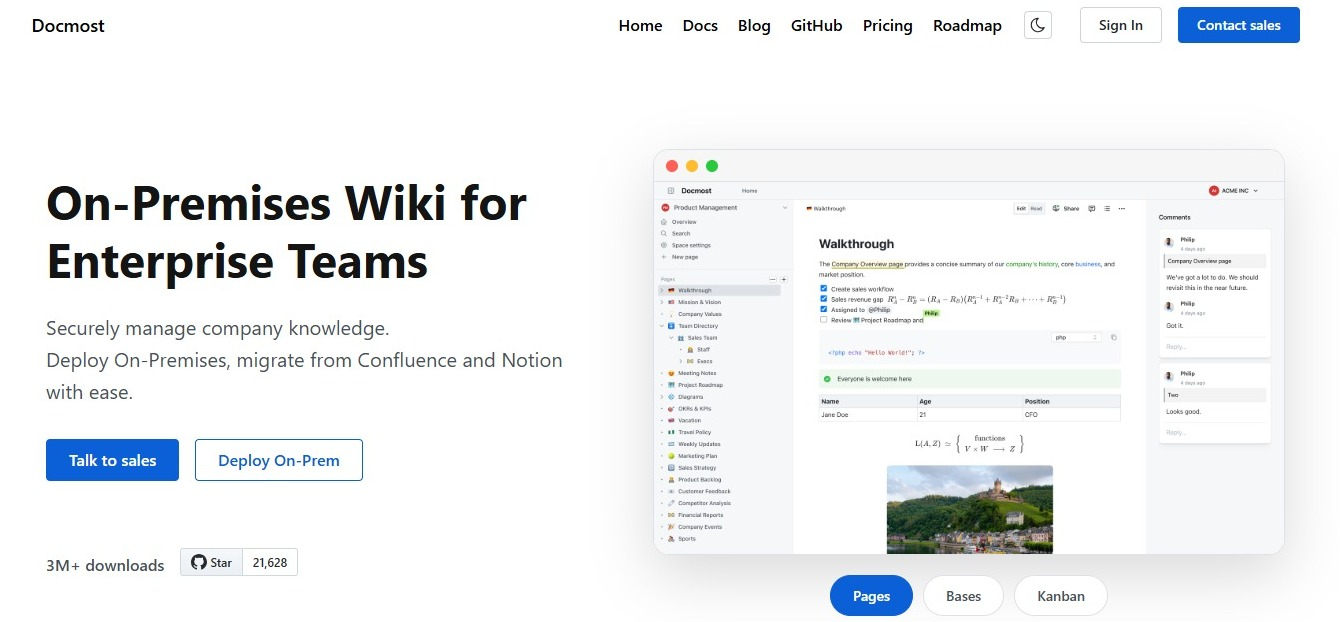
Docmost is an open-source wiki you can use in the cloud or run on your own servers. In Docmost, each project gets its own space, your team edits pages together in real time, and each space has its own members and permissions.
Docmost's paid edition adds three features that help with project work. Templates let you reuse the same layout for meeting notes, project plans, and onboarding checklists. Page-level permissions let you restrict a single page, like a budget breakdown, to chosen people or groups. Bases are databases with table and Kanban views. For a decision log or risk register, each entry is a row, each column is a field such as a date, a choice, or a person, and the Kanban view can group entries by status. Separately, public sharing lets you publish a page to a link when a sponsor or client needs to read it without an account.
What a PM would store here: one space per project, holding the charter, decision log, status reports, and meeting notes.
A simple project space in Docmost might look like this:
Website Redesign (space)
├── Project Charter
├── Decision Log
├── Status Reports
│ ├── Latest Status Report
│ └── Past Reports
├── Meeting Notes
│ ├── Kickoff
│ └── Steering Committee
├── Risks and Issues
└── Stakeholder Contacts
For a step-by-step version of this setup, see how to set up a project wiki for your team.
Features That Stand Out
- Real-time editing, inline comments, and page history.
- Spaces and nested pages that give each project its own area, with space roles you can assign to people and groups.
- Public sharing that lets anyone with the link read a page, with an option to include its subpages.
- Link previews in the paid edition. Paste a link from Jira, Linear, GitHub, GitLab, Azure DevOps, or Figma and it can show as a card or mention. Each person connects their own account, and sharing a Docmost page doesn't give readers access to the linked item.
- A free open-source edition licensed under AGPL-3.0, which you host yourself. A cloud version is also available.
Limitations to Check
- Templates, page-level permissions, Bases, and link previews are in the paid edition.
- Docmost is a wiki, so schedules, timelines, and dependencies stay in your tracker. Bases can track simple lists like risks and action items, but they only have table and Kanban views.
- A Base on a publicly shared page doesn't show up for people viewing the public link. Bases are also meant for small to medium sets of rows.
- If you self-host, hosting, backups, upgrades, and security patching become your IT team's responsibility.
Best For
Project managers who want a space for each project, real-time editing for the whole team, and the option to keep project documents on their own servers.
If Confluence is also on your list, see how Docmost compares to Confluence.
2. Confluence
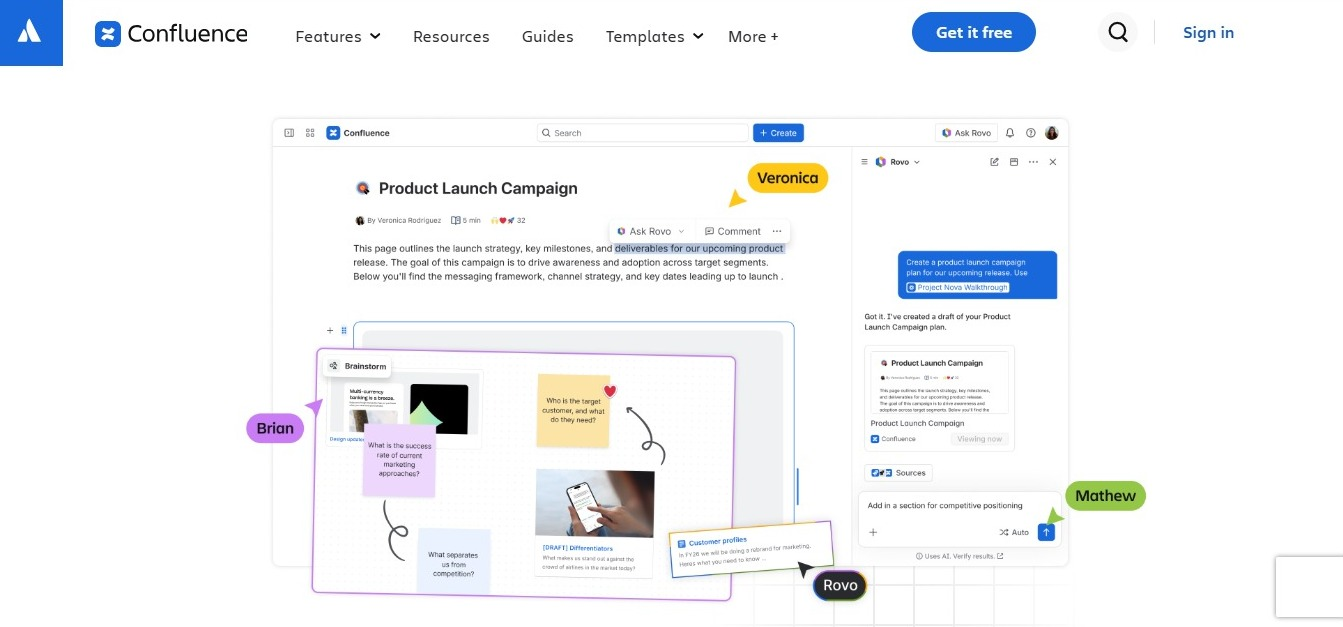
If your team already plans its work in Jira, Confluence is the obvious wiki to look at. Both come from Atlassian. When the two are connected, you can search for Jira work items and show them as a list on a Confluence page. You can also create a new work item without leaving the Confluence editor. That helps when a developer opens a ticket and needs the requirements behind it, or when you want a project page that shows where the related work stands.
Confluence organizes content into spaces and pages. It comes with ready-made templates for common project documents, including meeting notes and product requirements.
What a PM would store here: requirements pages next to the Jira work they describe, plus a space for each project's plans and meeting notes.
Features That Stand Out
- Spaces and pages for organizing project documentation.
- A connection to Jira that lets you show and create work items from a page.
- Ready-made templates, including meeting notes and product requirements.
- Live editing, so several people can work on the same page at the same time.
- Page restrictions that limit who can view or edit a page.
Limitations to Check
- Atlassian sells Confluence Cloud to new customers, but it no longer sells Data Center to them. If you need self-managed hosting, read up on Confluence Data Center end of life first.
- Pages are open to everyone with access by default, so you'll need to set restrictions on anything sensitive.
- The Jira connection is its biggest draw, so teams that don't use Jira get less out of it.
Best For
Project managers whose teams run their work in Jira and want documentation connected to it.
If you're comparing it with Notion, see how Notion compares to Confluence.
3. Notion

Notion combines pages with databases, which suits project managers who want written documents and structured records in the same place. You could keep your charter and meeting notes as pages, then build your risk register or decision log as a database with properties for owner, status, and date. Each row in a database opens as its own page, and the same database can show up as a table, a board, a timeline, or a calendar.
What a PM would store here: a project page with the charter at the top and databases for risks, decisions, and meeting notes underneath.
Features That Stand Out
- Pages and databases in one workspace.
- Database views that include table, board, timeline, and calendar.
- Templates for pages and database entries.
- Guest access, so you can invite people outside your workspace to view, comment on, or edit specific pages.
- Page access levels you can set for each person or group: full access, can edit, can comment, or can view.
- Editing the same page at the same time with other people.
Limitations to Check
- Its flexibility means your team has to agree on a structure, or each project ends up organized differently.
- Check which plan includes the guest access and permission controls you need.
Best For
Project managers who want documents and project databases in one flexible workspace.
For a closer look, see how Docmost compares to Notion.
4. ClickUp Docs
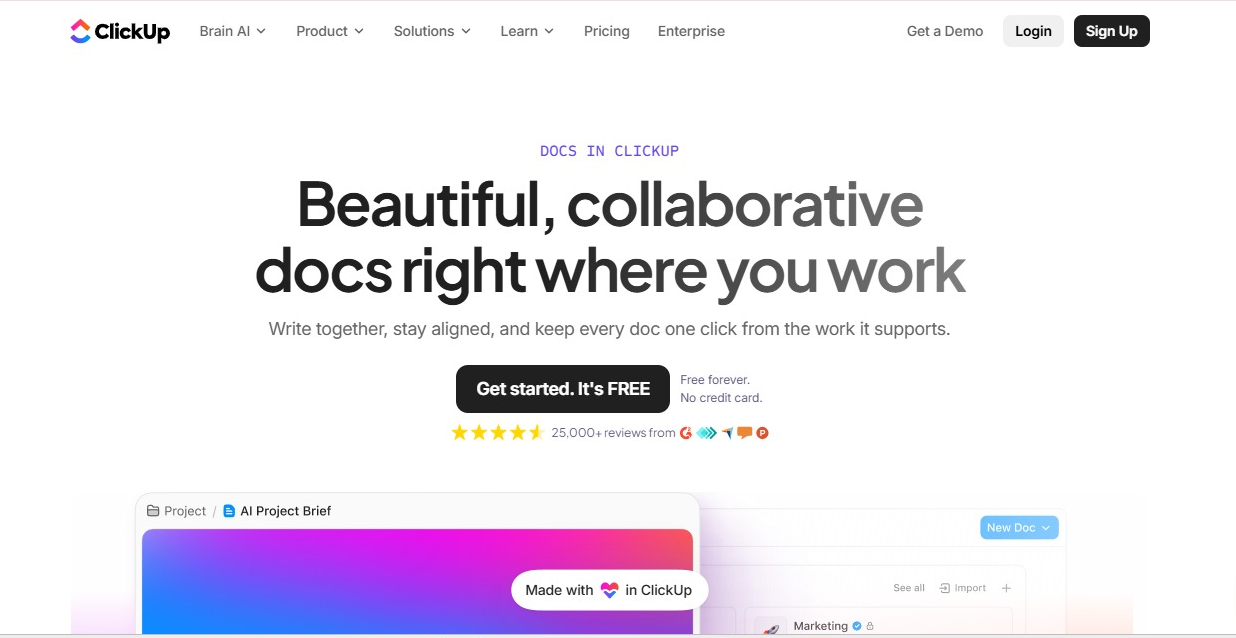
ClickUp is a project management tool first, and Docs is its built-in writing feature. Because the docs are in the same app as your tasks, you can link a Doc to the tasks it supports and create a task straight from text inside a Doc. ClickUp also lets you set up a wiki, which is a Doc marked as the source of truth for a topic.
What a PM would store here: a project brief or process guide linked to the tasks that carry out the work.
Features That Stand Out
- Docs that link to tasks, and tasks you can create from text inside a Doc.
- Wikis, which are Docs marked as the source of truth.
- Doc templates for repeat documents.
- Comments, page history, and named owners and contributors on each Doc.
- Sharing with people outside your workspace, by invitation or with a public link.
Limitations to Check
- Your docs are kept inside ClickUp, so anyone outside your team needs an invitation or a public link to read them.
- Making a Doc private is only available on the Business plan and higher.
- It works best when your team already manages its tasks in ClickUp. If you use a different tracker, you lose the main reason to pick it.
Best For
Teams that already manage their tasks in ClickUp and want their docs right beside them.
5. Nuclino
Nuclino is a lightweight cloud wiki. Your team edits pages together in real time, and you can look at the same set of pages as a list, a board, a table, or a graph that shows how pages link to each other.
What a PM would store here: a small team's project notes, onboarding guide, and a board of pages grouped by project stage.
Features That Stand Out
- Real-time editing for the whole team.
- List, board, table, and graph views of the same pages.
- Templates for items and ready-made workspaces.
- Admin and member roles, plus guest, comment-only, and read-only roles on paid plans.
- The option to publish a workspace as a website on paid plans.
Limitations to Check
- Access roles are set for the team and for each workspace, so check whether that covers pages like budgets and contracts.
- Guest, comment-only, and read-only roles are on paid plans. The free plan also has a limit on how many items you can create.
Best For
Small project teams that want a lightweight wiki.
For a closer look, see how Docmost compares to Nuclino.
6. Outline
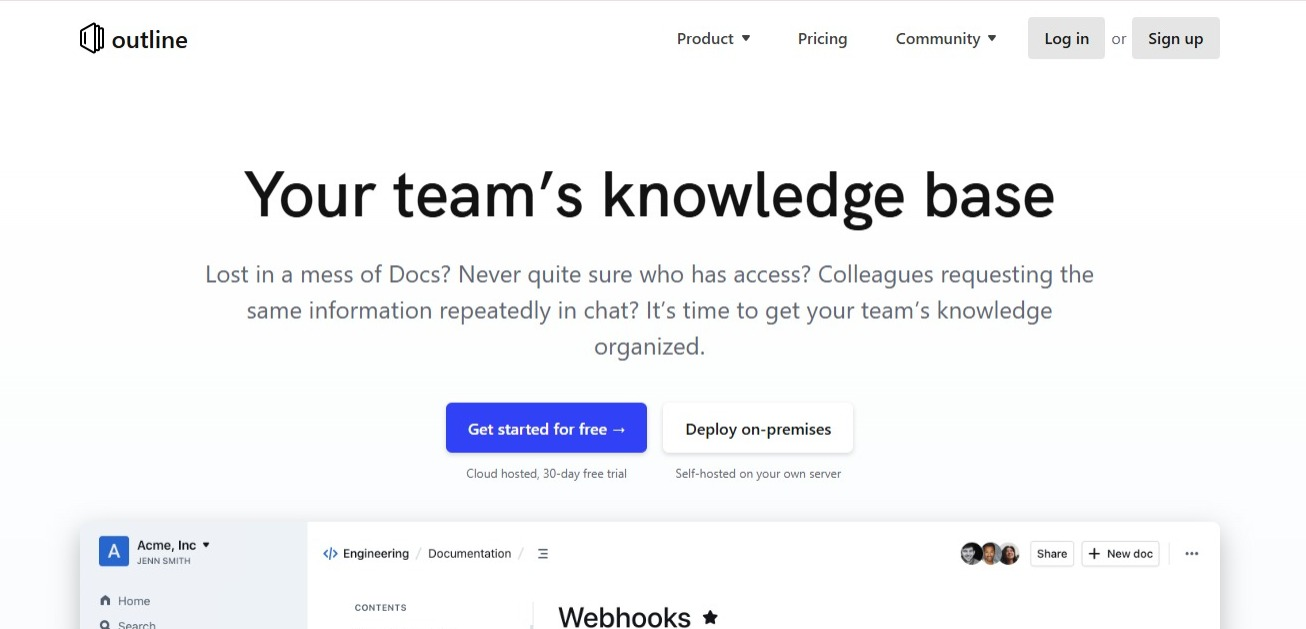
Outline is a team knowledge base with a real-time editor. You can use its cloud service or run it on your own servers. It organizes pages into collections, and one collection per project works well.
Outline is licensed under the Business Source License (BSL 1.1). That means you can read the code, but it isn't open source. Outline's own license says so. It also says you can't use it to run a commercial service where other people create their own teams and documents.
What a PM would store here: a collection per project with the charter, meeting notes, and decision records.
Features That Stand Out
- A real-time editor.
- Collections for organizing pages by project.
- Templates that can be kept in a collection or across the whole workspace.
- The option to share a single document with specific people on top of what the collection allows.
- Cloud or self-hosted options.
Limitations to Check
- Review the BSL 1.1 license with your legal or procurement team before you commit.
- The guest role isn't available in the self-hosted community edition, which matters if you need to give clients or vendors limited access.
- Outline's self-hosting guides walk you through setting up sign-in with a provider, such as an OIDC service, so plan for that before you start.
- If you self-host, hosting, backups, upgrades, and security patching become your IT team's responsibility.
Best For
Teams that want a real-time editor and the option to host it themselves.
See how Docmost compares to Outline.
How to Choose the Right Wiki for Your Projects
Match the wiki to where your project work already happens. Teams in Jira lean toward Confluence, teams in ClickUp lean toward ClickUp Docs, and teams that want their own servers lean toward Docmost or Outline. Then test your top pick with real documents.
Start With the Documents You Re-Create Most
Write down the documents you build again for every project, like the charter, the weekly status report, and the meeting notes. Then set each one up as a template in your trial workspace. The tool that makes those documents quickest to start and easiest to read is usually the right one.
Test Sharing With Someone Who Has No Account
Send a status report to a sponsor or a colleague outside your team and see what happens. If they can read it from a link, great. If they need an account or a guest seat, make a note of that.
Check the Tracker Connection on the Plan You'd Buy
If you need pages to show live ticket details, confirm the connection works on the plan you'd pay for, not only on a trial. If linking back and forth is enough, make sure your team will keep doing it.
Decide Who Owns Each Page
A project wiki stays useful when every important page has someone responsible for keeping it current. Pick an owner for the charter, the decision log, and each template, and agree on when each one will be reviewed. See how to assign page owners and review dates in a wiki.
If you run a project management office and need a shared library for every project in the organization, see the best knowledge base tools for PMOs.
Frequently Asked Questions
- What Is a Wiki for Project Managers?
It's a shared set of pages where a project manager and their team keep the information that explains the project, such as the charter, decisions, status reports, and meeting notes. The team can edit pages together, link them, and search across them, so nobody has to dig through chat or email to find what was agreed.
- Do I Need a Wiki If I Already Use a Project Management Tool?
Not always. If your project is small and everyone works inside one tool, its built-in docs may be enough. A separate wiki helps once you're running several projects, sharing documents with people who don't use your tracker, or limiting who can see sensitive pages.
- What Should a Project Manager Put in a Wiki?
Start with the documents people come back to: the project charter, decision log, status reports, meeting notes, risk descriptions, and an onboarding page for new team members. Leave tasks and due dates in your tracker and link to them from the wiki where they help.
- How Do You Share a Project Wiki With Clients or Executives?
It depends on the tool. In Docmost, you can publish a page to a public link, and anyone with the link can read it. In Notion, you can invite people outside your workspace as guests on specific pages. In Nuclino, guest roles are on paid plans. For anything sensitive, keep the page restricted and share it only with the people who need it.
- How Do You Keep a Project Wiki From Going Out of Date?
Give every important page an owner and a review date, and update pages as part of your normal project routine, such as after each steering meeting or status report. When a project closes, give everyone view-only access to its space so the record stays readable and nobody changes it by accident.
- Can a Wiki Replace Confluence for Project Documentation?
Often, yes, if your team mainly uses Confluence for project pages, meeting notes, and decisions. The main things to check are the Jira connection, since that's where Confluence is strongest, and how you'll move your existing pages across. Docmost's paid edition includes a Confluence importer, and the import and export guide walks through bringing content over.
Give Every Project One Place for Its Docs
Docmost gives each project a space for its charter, decisions, status reports, and meeting notes, in the cloud or on your own servers. Get a free trial license, or contact sales to talk through your setup.