Confluence vs Notion for Project Documentation: What to Use for Each Document
Deciding between Confluence and Notion for project documentation? Here's which tool handles each document better, from the charter to the retrospective.

TL;DR
- Confluence is stronger when project docs need to follow a structure and connect to Jira tickets.
- Notion keeps project docs and tasks in the same databases, with no separate tracker needed.
- The tools differ the most in how they connect docs to tasks and how they handle a project once it closes.
- If project docs must stay on your own servers, neither works, and a self-hosted wiki is the better alternative.
Your engineer is building from a requirements doc that got replaced last month. The new version is in a different tool, and the person who moved it has left the project. Meanwhile, a stakeholder wants the latest status update, and you can name a few different places it might be.
A mix-up like that is frustrating, and it adds up fast. People redo work built on old specs, make calls on outdated information, and end up in one more meeting about which tool the team should use. It's easy to blame the tool. Often, though, nobody decided where each project document belongs, so each one ended up wherever its author was working that day.
Confluence and Notion can both hold project documents, and they handle those documents differently. This post goes through how they both work with each project document, one at a time, from the charter to the retrospective, so you can match each document to the tool that suits it better. It also covers what happens to those documents after the project closes. For the general comparison of pricing, AI, and permissions, see our full Notion vs Confluence comparison.
Confluence vs Notion for Project Documentation Compared
|
Feature |
Notion |
Confluence |
|
Project structure |
A page or database per project |
A space per project |
|
Templates |
Template gallery and database templates |
Built-in page templates |
|
Linking docs to tasks |
Native tasks in databases |
Jira links and built-in blocks called macros |
|
Status reporting |
Database views and filters |
Jira-fed lists and page macros |
|
Decision logs |
Database with date and owner properties |
Decision and DACI templates, plus a report that lists decisions |
|
Guests and clients |
Guests invited to individual pages |
Guests assigned to one space, on paid plans |
|
After the project |
Archive a teamspace, or reuse a database template |
Archive pages or a whole space |
|
Self-hosting |
Not available |
Data Center only, and it's being retired |
|
Best for |
Teams that want docs and tasks together |
Teams already running projects in Jira |
Pricing, AI, and permissions are in our Notion vs Confluence comparison, so this post sticks to project documents.
How Each Tool Organizes a Project
Confluence has spaces as ready-made containers for projects, while Notion asks you to build that container yourself. That difference affects whether a project's docs stay findable once there are more than a handful of them.
Confluence: One Space per Project
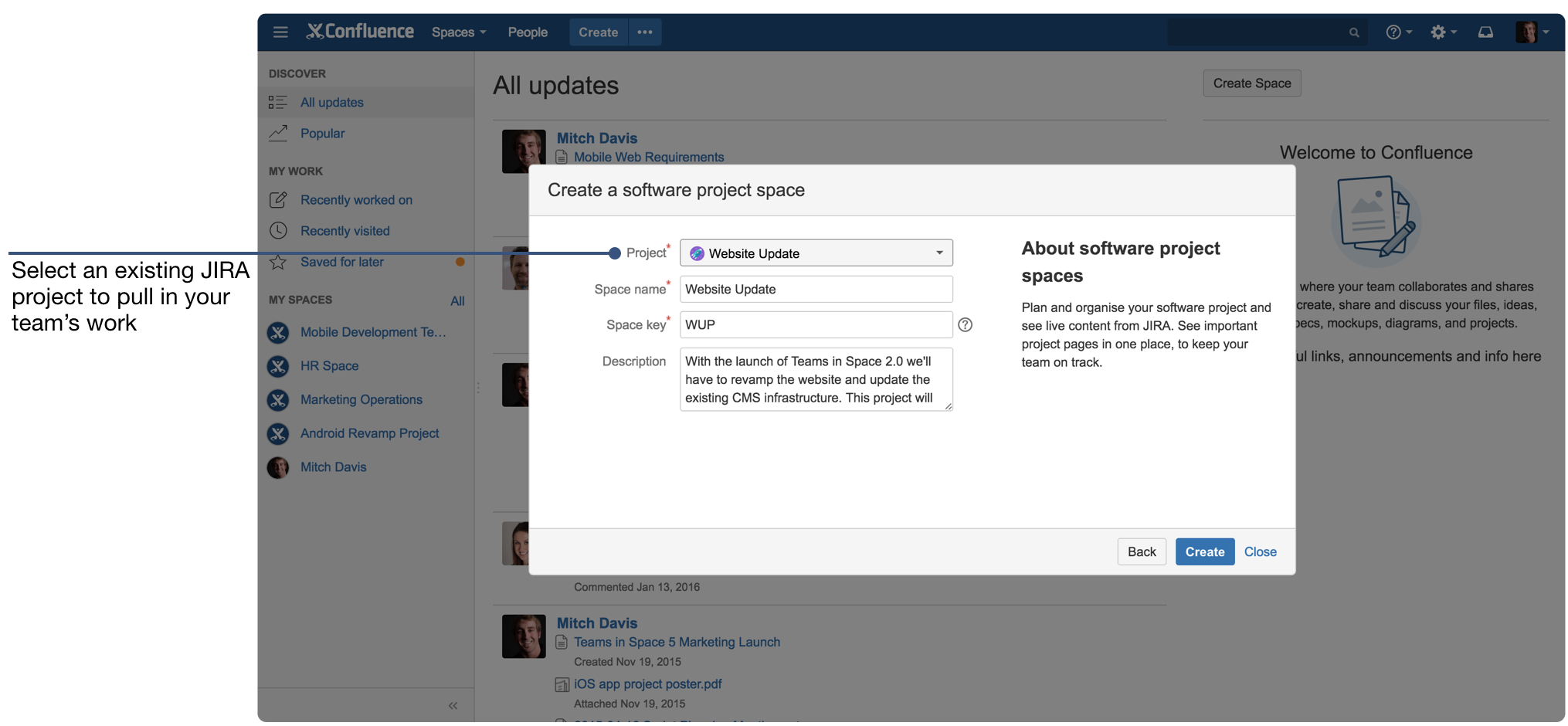
You can give each project its own space. Atlassian suggests using spaces for the project plans, meeting notes, and requirements that go with a Jira project. The space holds your pages in a nested list in the sidebar, so the plan, the meeting notes, and the decision log can all go under the same parent.
Access is managed at the space level, and you can restrict individual pages when you need to. Labels and page properties let you pull information across projects too. If every status page has the same Status and Owner fields filled in, Confluence can gather them for you. A feature called the content properties report macro (Atlassian's current name for the page properties report macro) lists them all on one overview page, even when the pages are in different spaces. That way, you're not opening every project to check where things stand.
Notion: A Project Page or Database

Notion gives you two common setups. The simpler one is a project page with linked databases inside it, such as one for tasks and one for docs. The other is a projects database, where each row is a project. You can build separate databases for projects, tasks, notes, and docs, then connect them with a relation property, so each project row links to its tasks and docs.
Both work well, but the issue is that Notion leaves the structure up to you, so you need someone to design the setup and keep it consistent. Flexibility is the whole point of Notion, and it's also why two projects in the same workspace can end up looking nothing alike.
For the steps to build a project space from scratch, see how to set up a project wiki.
Which Tool Handles Each Project Document Better
Neither tool wins every document. Confluence tends to work better for documents that need the same shape every time, like a requirements doc. Notion tends to work better for documents you want to filter and reshape as the project moves, like a task list.
The table below goes through the documents most projects produce and shows how each tool handles them. The last column says which tool suits that document better, or whether it's a tie.
|
Project Document |
Notion |
Confluence |
Edge |
|
Project charter or plan |
Flexible page with linked database |
Project plan template |
Both. It depends on how much structure you want |
|
Requirements doc |
Page with embedded database |
Product requirements template |
Confluence for structure, Notion for flexibility |
|
Meeting notes |
Database template, which can repeat on a schedule |
Weekly meeting notes template with agenda, notes, and action items |
Notion if you want pages created for you each week, Confluence if you want everything on one page |
|
Status reports |
Database views |
Jira-fed macros |
Depends on whether you use Jira |
|
Decision log |
Database with date and owner properties |
Decision and DACI templates, plus a decision report |
Both can collect decisions in one view |
|
Risk and issue log |
Database with properties and filters |
Confluence database, or Jira work items shown on a page |
Tie. Pick the one your team already uses for tasks |
|
Retrospective |
A template you build or copy from the gallery |
Retrospective template |
Both |
The charter and retrospective come out close to even, because both tools give you a starting template for them. The three sections below go deeper on status reports, decision logs, and risk logs.
Status Reports
Confluence is better for status reports if your work is tracked in Jira, and Notion is better if your work is tracked in Notion.
- In Confluence: Drop the Jira work items macro onto a status page, and it shows a list, or a count, of work items from a Jira search. The "what's still open" part of the report updates itself. You still write the summary yourself, but the numbers underneath it stay current.
- In Notion: Tasks are kept in a database, and the status page holds a linked view filtered to whatever you need, like this week's work or anything blocked. The view updates as people change task statuses. That only holds up if people update their tasks in Notion, though. If engineering tracks work somewhere else, someone has to copy status over by hand, and copied status can fall behind.
Decision Logs
A useful decision log entry holds the decision, the date, who made it, what else was considered, and a link to where it was discussed. What matters is whether you can still find those entries a year later.
- In Confluence: Decision and DACI templates (DACI is a framework for making group decisions) start each decision with the same sections. A decision report macro can then list the decisions from pages in one or more spaces and filter them by label or other search fields.
- In Notion: A decision log is a database. Each decision is a row with properties for the date, the owner, and a status such as proposed, decided, or reversed. You can filter by owner or sort by date, which helps when someone asks why the scope changed in week six.
Either way, entries only stay useful if people fill in the fields every time. If you're starting a log from scratch, our guide on how to document decisions has an entry template you can copy.
Risk and Issue Logs
Both tools can hold a risk log as a database.
- In Confluence: A database shows the same entries as a table, cards, or a board, and you can filter and sort them. Confluence databases are included in every plan. If your risks are already tracked in Jira, Confluence can also show them on a page with the Jira work items macro.
- In Notion: You add properties for likelihood, impact, owner, and status, then filter for open high risks.
Linking Project Docs to Tasks
This is one of the biggest differences between the two tools. Confluence connects docs to tasks through Jira, and Notion keeps docs and tasks in the same workspace.
Confluence With Jira

Paste a Jira work item link into a Confluence page and it converts into the Jira work items macro. Jira also adds a link from the work item back to the page. That way, a requirements page can show the status of the tickets behind it, and each ticket links back to the requirement. Statuses come straight from Jira, so nobody has to copy them across.
Confluence Without Jira
Confluence works without Jira, but the Jira work items macro only works when your Confluence site is connected to Jira. Without that connection, you can use Confluence's action items. You assign them with an @mention, and a task report macro gathers them into one list that you can filter by person, space, label, and due date. Confluence databases can hold a tracker too.
Notion With Databases
In Notion, a tasks database and a docs database can be connected with a relation property, so a requirements page lists the tasks behind it and each task links back. Everything stays in one tool.
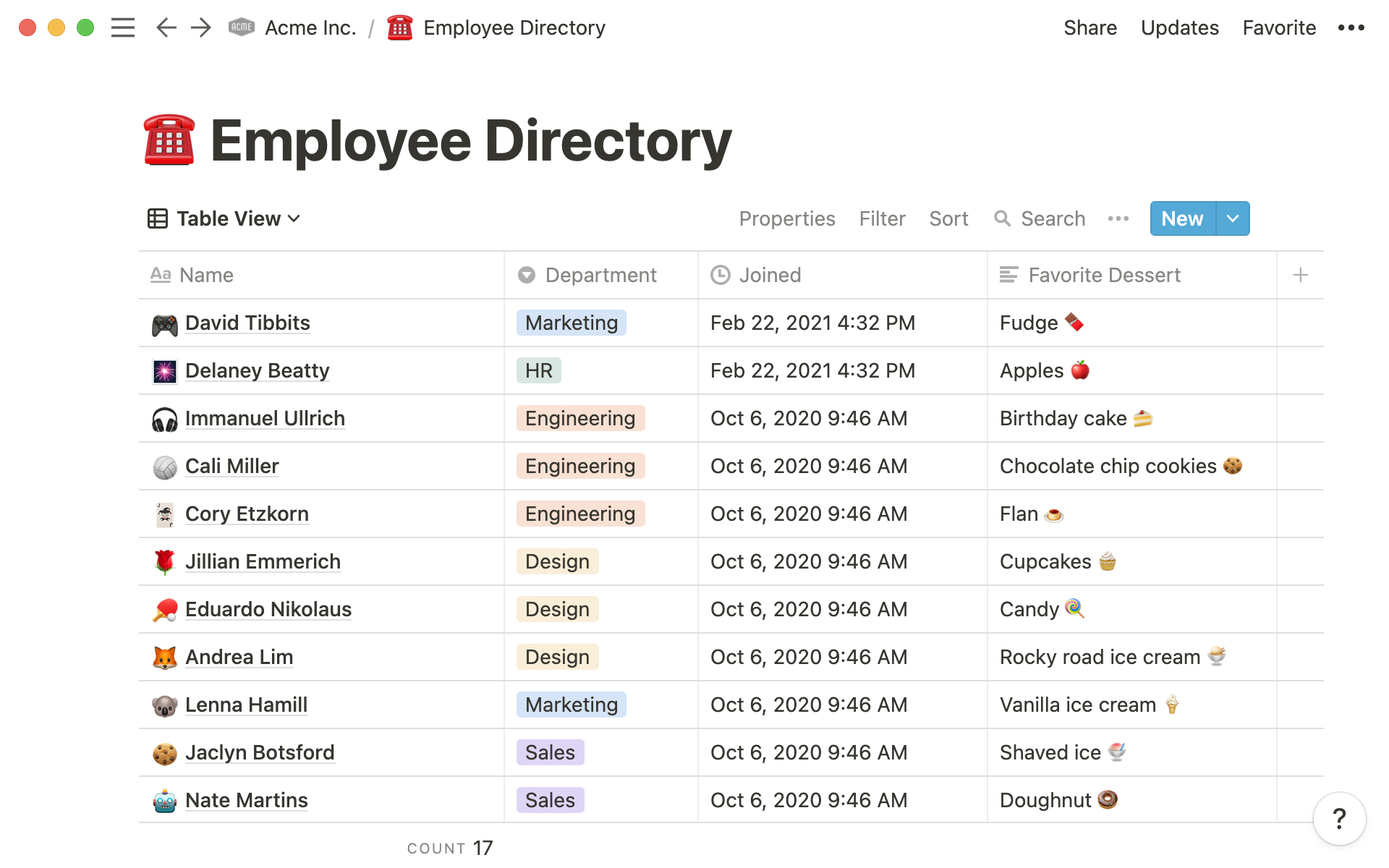
The cost is that the database is yours to maintain. Someone decides the properties, the statuses, and the views, and when the setup drifts, nobody else is going to fix it.
If your engineers stay on Jira, Notion can still help. It shows Jira links as previews and syncs Jira projects and work items into a Notion database, so everyone else can see them in Notion. Two-way sync, where edits in Notion update Jira, is on Notion's Enterprise plan.
Sharing Project Docs With Clients and Stakeholders
Confluence shares a whole space with a guest, and Notion shares individual pages.
- In Confluence:
- Guests are available on paid plans, and each guest is limited to the single space they're assigned to.
- That makes a client space easy to set up.
- A guest can see everything in that space unless you restrict individual pages.
- In Notion:
- You invite guests to specific pages.
- On the Free plan, you can invite up to 10 external guests. The paid plans (Plus, Business, and Enterprise) support unlimited guests.
- Workspace owners can decide whether members are allowed to invite guests at all, under Settings, then Security.
- When you share a single page from a database, the guest can see every property on that page.
- On the Business plan, you can also limit a collaborator to the database rows assigned to them.
Say a client needs to see the status page and nothing else:
- In Confluence: You either create a small client space that holds the status page, or restrict the other pages in the project space.
- In Notion: You share that one page with view access and check its sub-pages, since sub-pages pick up the same access.
What Happens to Project Docs After the Project Ends
Confluence lets you archive a whole space in one step. In Notion, the cleanup depends on how you built the project in the first place.
Archiving the Project
- In Confluence:
- You can archive individual pages, and each space has its own archive.
- Space admins on Premium or Enterprise can archive pages in bulk.
- A space admin can also archive a whole space. It disappears from menus and the main space list, and from search unless someone turns on "Search archived spaces." But people can still open it by link and edit it, based on the space's permissions.
- In Notion:
- Teamspace owners can archive a teamspace, which removes it from every member's sidebar.
- A teamspace can be archived but not deleted, and workspace owners who also own it can restore it.
- If your project is a page inside a bigger teamspace, decide on your own closing step, such as moving it under a "Closed Projects" page and restricting who can open it.
Reusing the Setup for the Next Project
A finished project is often the best template for the next one. In Confluence, you can save the pages you reuse as templates or copy the page tree into the next project's space. In Notion, you can set up a database template so every new project row starts with the same structure.
Finding Lessons Learned Later
A retrospective only pays off if the next project manager can find it. In Confluence, that means labeling every retrospective the same way so a label search pulls them all up. In Notion, it means keeping retrospectives in one database with a project property you can filter on. Project management offices (PMOs) that run lots of projects at once can find more options for this in our roundup of knowledge base tools for PMOs.
Removing Leftover Access
In Confluence, archiving doesn't remove anyone's access, and closed projects keep their guests until someone removes them. Admins can see every guest in the Guest access tab under Global permissions. In Notion, guests are listed under Settings, then People, then Guests. Checking those lists is a good last step before you call a project closed.
Keeping Owners on Docs That Outlive the Project
Some documents keep working after the project ends, like a runbook or an architecture decision. Without an owner, they quietly go out of date, so name one for each of them and agree on when it gets reviewed. Our guide on how to assign page owners walks through setting this up in a wiki.
Which Should You Choose for Project Documentation?
Pick Confluence If
- Your projects already run in Jira
- You want every project to follow the same document structure
- Clients or auditors need consistent project records
Pick Notion If
- You want project docs and tasks in one workspace
- Your projects vary a lot in shape
- You have someone willing to maintain the setup
These are our picks for different teams:
|
Team |
Our Pick |
|
Engineering |
Confluence, if your sprints already run in Jira |
|
Marketing |
Notion, if you want briefs and tasks in the same database |
|
Agency |
Confluence if you want a separate space per client with guest access, Notion if you'd rather share single pages |
|
PMO |
Confluence, if you want every project to start from the same templates |
When Neither Fits
Notion is a cloud tool, and Atlassian is retiring Confluence Data Center, its self-hosted option. If a client contract or a data residency rule says your project documentation has to stay on your own servers, neither is a long-term fit.
Self-hosting changes three things:
- Your data never leaves infrastructure you control
- You define your own compliance posture, covering access controls, encryption, and retention, instead of inheriting a vendor's
- Hosting, backups, upgrades, and security patching become your IT team's responsibility
Docmost is an open-source wiki you can host yourself. You can create a space for each project, and Docmost can import a Notion export and a Confluence export. The Notion importer is in the free Community edition, while the Confluence importer is part of the paid edition. Pages export as Markdown or HTML. You can see how Docmost compares to Confluence and Notion side by side.
If you plan to keep your current tracker, our guide to a self-hosted wiki for project documentation covers how to split project documents between the wiki and the tracker. For a wider look at other options, see our internal wiki alternatives to Confluence and Notion.
Frequently Asked Questions
1. Is Confluence or Notion better for project documentation?
Confluence is better if your projects run in Jira and you want every project documented the same way. Notion is better if you want docs and tasks in one place and your projects vary a lot. Most teams can tell which one fits by asking where their tasks are tracked today.
2. Can Notion replace Confluence for project documentation?
Yes, for many teams. Notion can hold the same kinds of project documents, and its databases handle decision logs and risk logs. Two things change. You connect to Jira differently, since the Jira macros are a Confluence feature. And you lose the built-in structure, so someone on your team has to design and maintain the setup.
3. Can I use Notion and Jira together?
Yes. Notion can show Jira links as previews and sync Jira projects and work items into a Notion database, so you can see engineering tickets next to your project docs. On Notion's Enterprise plan, the sync can also go both ways, so edits in Notion update Jira. Check which plan you'd need before you commit.
4. What should a project documentation template include?
At minimum, a project plan or charter that states the goal, scope, owner, and timeline, plus a running decision log and a place for status updates. Add meeting notes and a retrospective template so the end of the project gets written down too. Keeping the same sections in every project makes old projects much easier to search later.
5. How long should you keep project documents after a project closes?
It depends on your contracts and your industry, so check with whoever owns compliance or records at your company. In most cases, keep anything the next project could learn from, like decisions and retrospectives, and archive the working notes instead of deleting them.
6. How do you keep project documents from going out of date?
Give every document that outlives the project a named owner and a review date. Archive the rest when the project closes, so readers aren't searching through pages nobody maintains.
Keep Project Docs on Your Own Servers
If your project documentation has to stay on infrastructure you control, Docmost gives you a self-hosted wiki with a space for every project and real-time editing.
Get a free trial license or talk to our team about what your setup would look like.