How to Create and Organize Spaces in Confluence
If you've recently started using Confluence, one of the first things you'll need to wrap your head around is spaces. Spaces are the backbone of how Confluence organizes content, and getting them right from the beginning can save you a lot of headaches down the road. Get them wrong, and you'll end up with a tangled mess of pages that nobody can find.
Let's walk through how spaces actually work, how to create them, and some practical strategies for keeping things organized as your team grows.
What Are Spaces in Confluence?
Think of a space as a high-level container for related content. Each space holds its own collection of pages, blog posts, and attachments. Most teams create spaces around departments, projects, or specific functions. For example, you might have a "Marketing" space, a "Product Roadmap" space, and an "Engineering Wiki" space.
Every space gets its own homepage, its own page tree, and its own set of permissions. This means you can control who sees what at the space level, which is useful when you have sensitive information that shouldn't be visible to the entire company.
Confluence offers two types of spaces: site spaces and personal spaces. Site spaces are the ones your team will use for collaboration. Personal spaces are tied to individual users and are handy for drafting content or keeping personal notes before sharing them with the wider team.
Creating a New Space
Setting up a new space in Confluence is pretty straightforward. From the top navigation bar, click on "Spaces" and then select "Create a space." Confluence will present you with a handful of templates to choose from, including blank spaces, team spaces, documentation spaces, and knowledge base spaces.
Each template comes pre-configured with a different homepage layout and page structure. The knowledge base template, for instance, sets you up with a layout geared toward searchable articles. The team space template includes sections for meeting notes and project tracking.
Pick the template that fits your use case best, or just go with a blank space if you want to build everything from scratch. Give your space a name and a unique key (a short identifier that shows up in URLs), and you're good to go.
One thing worth noting is that the space key cannot be changed after creation. So take a moment to pick something sensible. Keeping keys short, consistent, and descriptive will make your life easier later, especially if you ever need to reference spaces through the API or in automation workflows.
Setting Up Permissions
Once your space exists, you'll want to configure permissions before anyone starts adding content. Head to the space settings and look for the "Permissions" tab. Here you can define who can view, edit, and administer the space.
You can assign permissions to individual users or to groups, and using groups is almost always the better approach. Create groups like "Marketing Team" or "Engineering Leads" in your Atlassian admin settings, and then assign those groups to the relevant spaces. This way, when someone joins or leaves a team, you only need to update their group membership rather than editing permissions across a dozen spaces.
A common mistake teams make is leaving every space open to the entire organization by default. While transparency is great in theory, it often leads to information overload. People end up wading through spaces that have nothing to do with their work, and search results get cluttered with irrelevant pages. Be intentional about who needs access to what.
Organizing Pages Within a Space
Creating the space is just the beginning. The real challenge is organizing the pages inside it so that people can actually find what they need. Confluence uses a hierarchical page tree, where every page can have child pages nested underneath it. This parent-child structure is powerful, but it can get unwieldy fast if you don't plan ahead.
Start by thinking about the top-level pages in your space. These should represent the major categories or topics that the space covers. Under a "Product" space, for example, your top-level pages might be "Roadmap," "Specs," "Research," and "Release Notes." Everything else should be nested logically underneath those categories.
Try to keep your page tree no more than three or four levels deep. If you find yourself nesting pages five or six levels down, that's a sign your space is trying to do too much and might need to be split into multiple spaces.
Labels are another useful tool for organization. You can tag any page with one or more labels, and then use those labels to create dynamic lists of related content. This is especially helpful when a page is relevant to multiple topics but can only live in one spot in the page tree.
Common Space Structures That Work Well
Over time, a few patterns have emerged that tend to work well for most teams. For department spaces, a simple structure with sections for processes, templates, and meeting notes keeps things clean. For project spaces, organizing by phase (planning, execution, review) helps team members find what they need based on where the project stands.
Documentation spaces benefit from a flat structure with strong use of labels. Instead of deeply nested pages, keep articles close to the top level and rely on search and labels to surface the right content.
When Confluence Start to Feel Limiting
For smaller teams, Confluence works well enough. However, as your organization grows, you may start encountering friction, such as slow performance, confusing permissions, and search results that are difficult to navigate or find meaningful information.
If you're hitting these walls, it might be worth looking at tools that were built with simplicity and scalability in mind from the start.
Docmost, offers a clean, intuitive structure that stays manageable as your team grow, without the overhead and complexity that Confluence tends to accumulate over time. Permissions, navigation, and content organization are all designed to stay simple, even at scale.
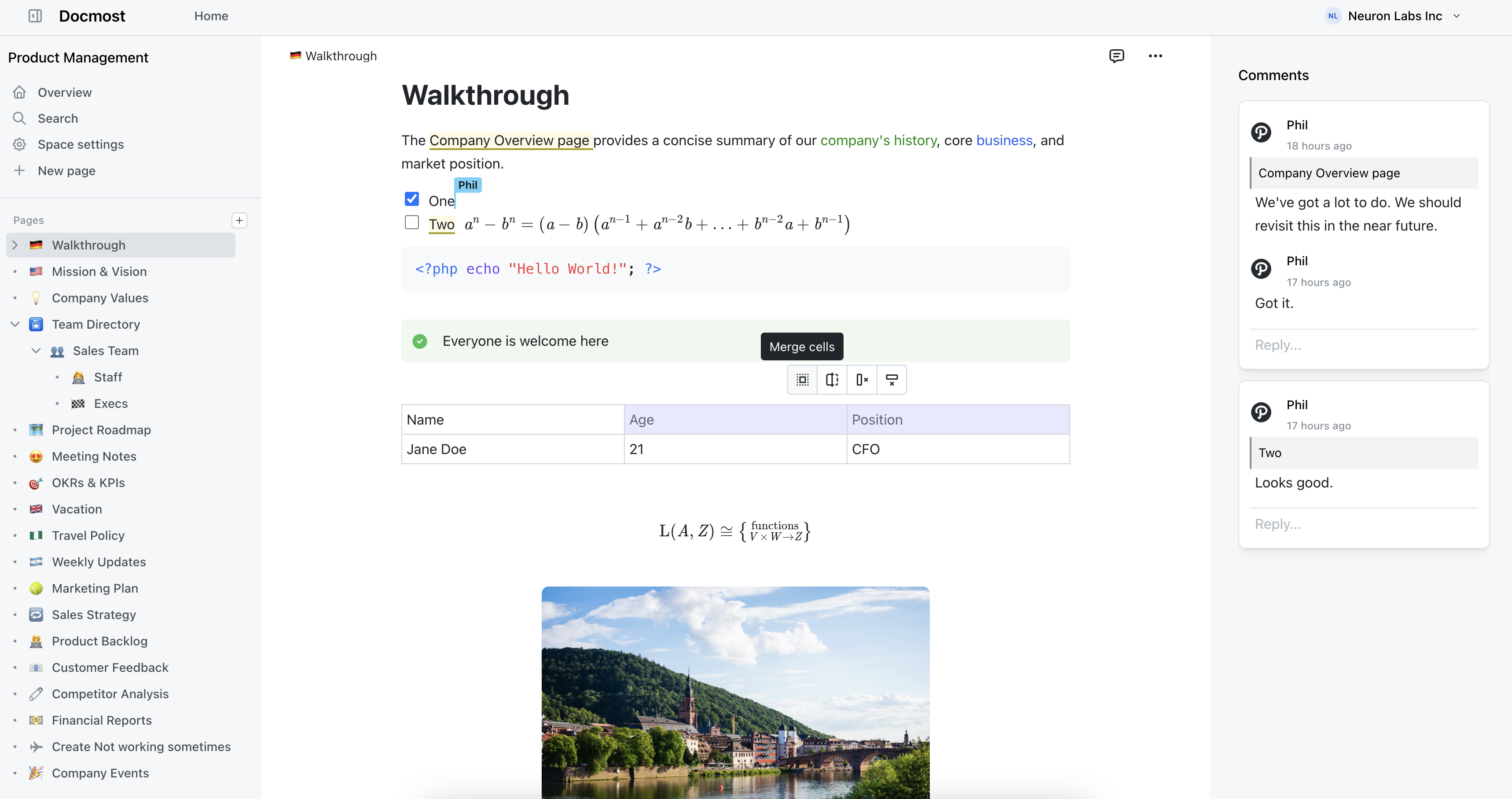
Best of all, Docmost can be fully self-hosted, giving you complete control over your data and security, making it easier to meet privacy requirements and comply with standards such as GDPR, HIPAA, ISO 27001, ITAR, and more.
It provides all the core features you'd expect from a modern wiki and documentation platform, including spaces, nested page trees, rich text editing, groups, permissions, LaText, diagrams, and real-time collaboration, without the bloat. Everything is designed to be intuitive from the start, so you spend less time configuring.
And if you're already using Confluence and curious about making the switch, we've made it easy. Docmost includes a built-in Confluence importer that lets you bring over your existing spaces, files, pages, and content structure without starting from scratch. Your team can pick up right where they left off, just in a cleaner and faster environment.